
Mynt Core & Enterprise – How to Run a Preauthorization
This Is a step-by-step guide on how to run a preauthorization in Mynt.
Please Note: Before trying to use preauthorization, it must be configured in the file build of the credit card payment device and then configured in Mynt. Ensure the Mynt Tech has these enabled before testing.
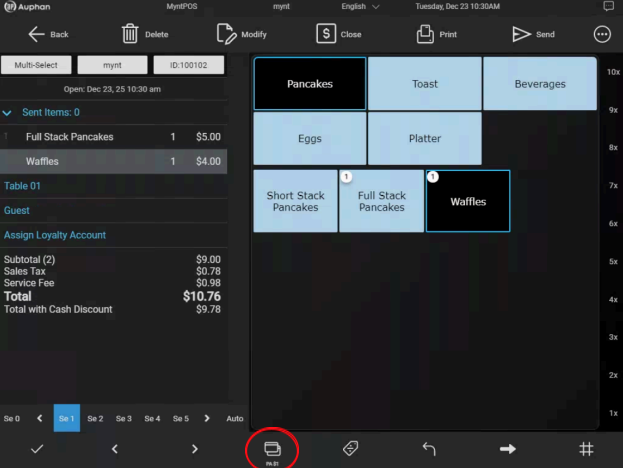
To run a credit card with a preauthorization, use the PA button on the bottom of the screen (these can be $0.01, $1.00, $5.00)
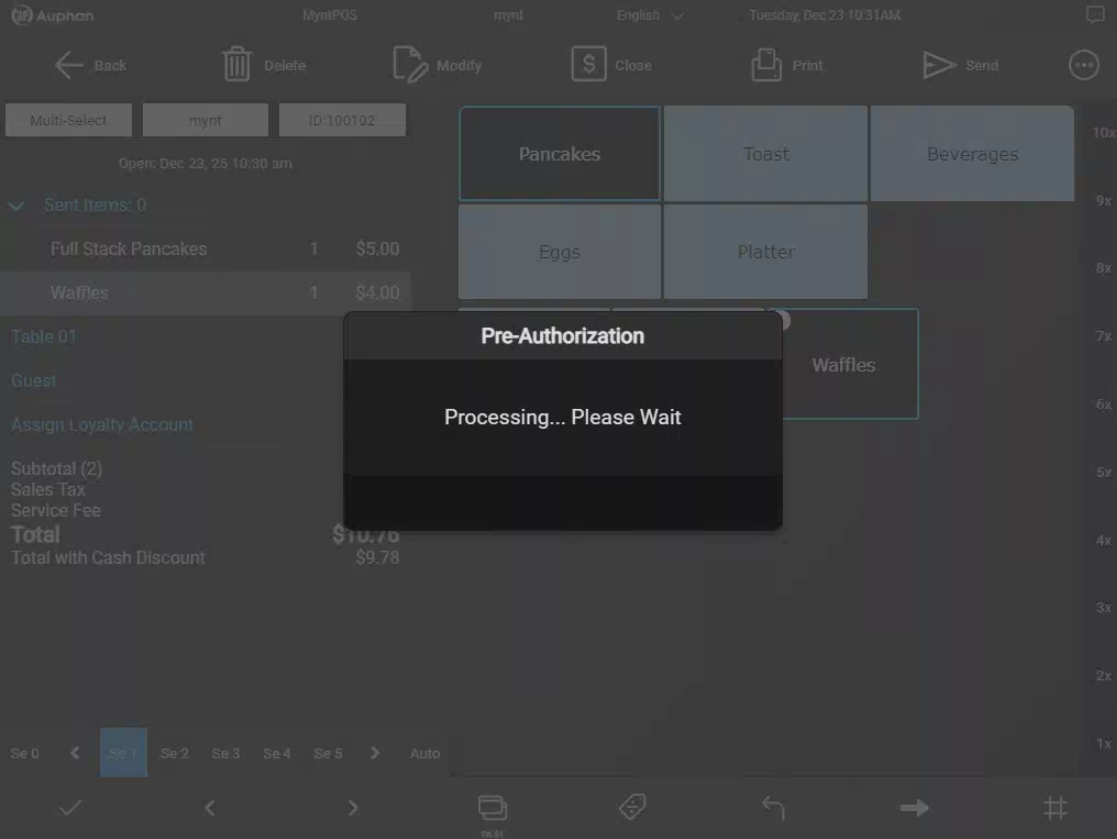
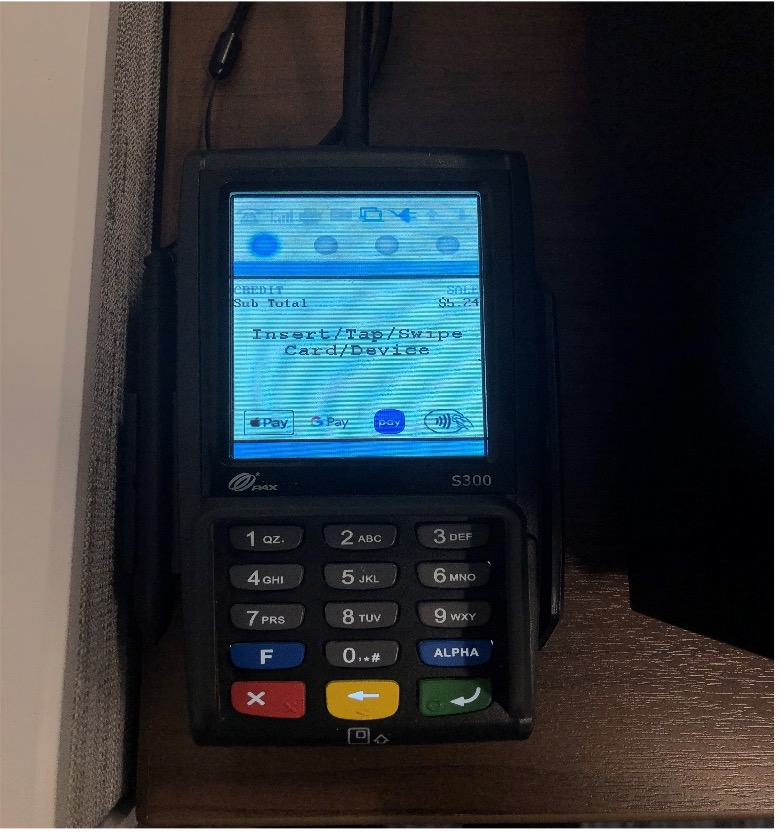
Once this button is pressed, it will prompt the pin pad for a swipe, tap, or insert.
There is now a preauth charge on the invoice. The customer can have their card back, you will not need it again.
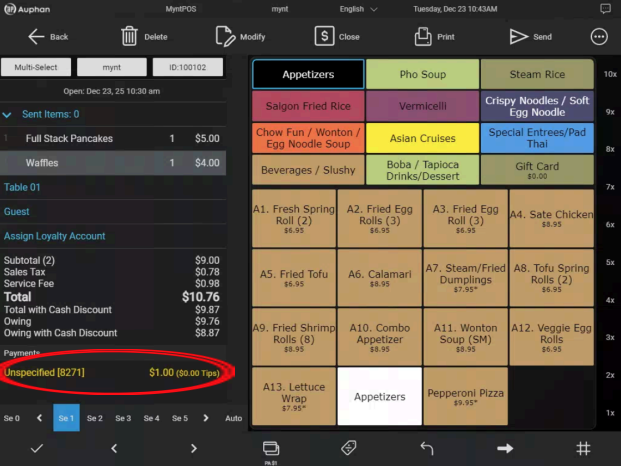
Items can be rung up as normal, when they are done, go to “Close”.
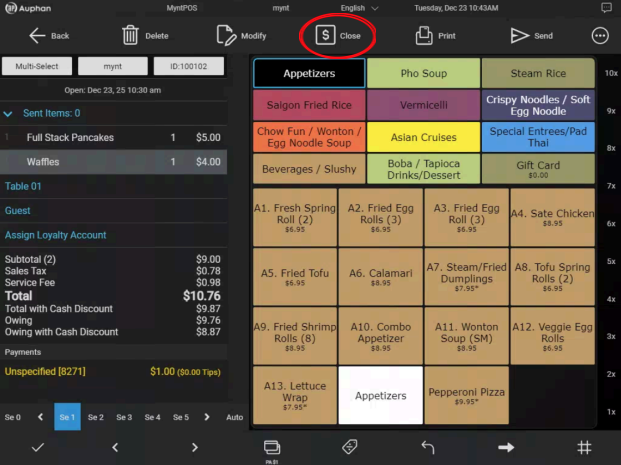
Press the yellow pre-auth credit card line to bring up the menu.
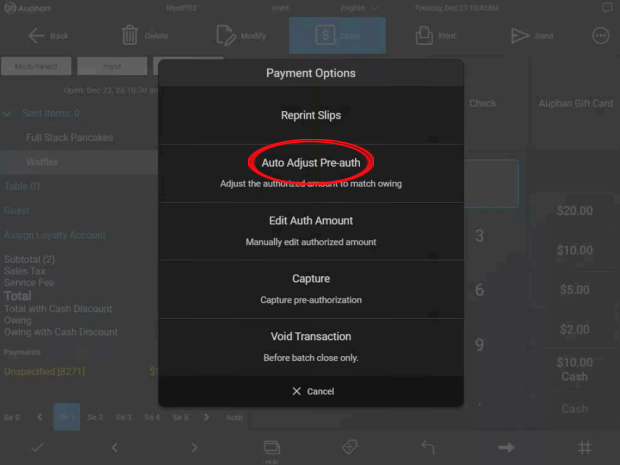
The card will now be charged the full amount.
IMPORTANT NOTE: Be sure to capture all transactions to include tips before your batch out triggers for the day.

