
Mynt Core & Enterprise – How to Run and Print Reports
This Is a step-by-step guide on how to run and print reports in Mynt.
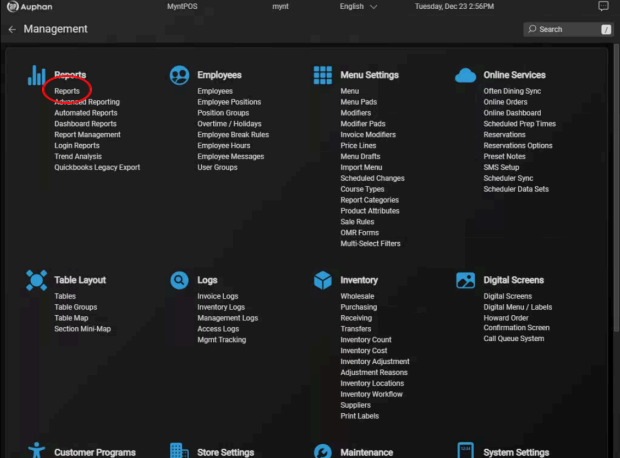
Navigate to “Reports” under “Reports” in Management.
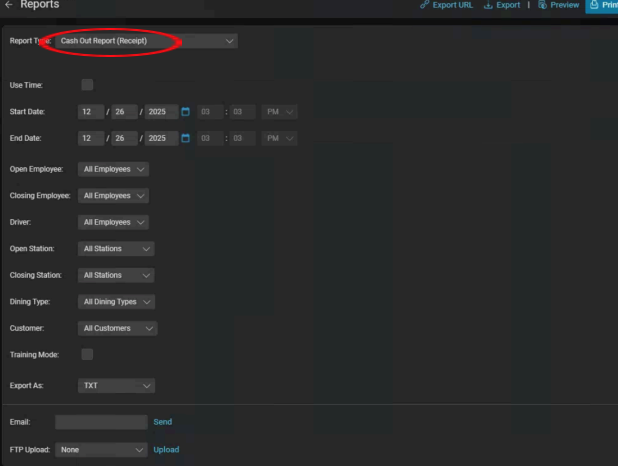
This is the reports screen. You can change the report type by using the top drop-down list of “Report Type”. Please note any reports with “(Receipt)” next to it can be printed out on your receipt printer. Any other report is a full-sized report that needs to be printed out on a full-sized printer or emailed.
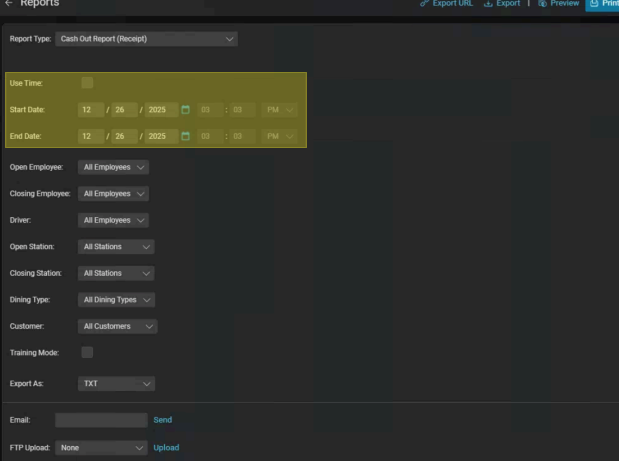
You can change the date and time it ranges over by using the “Use Time” and “Start Date/End Date”.
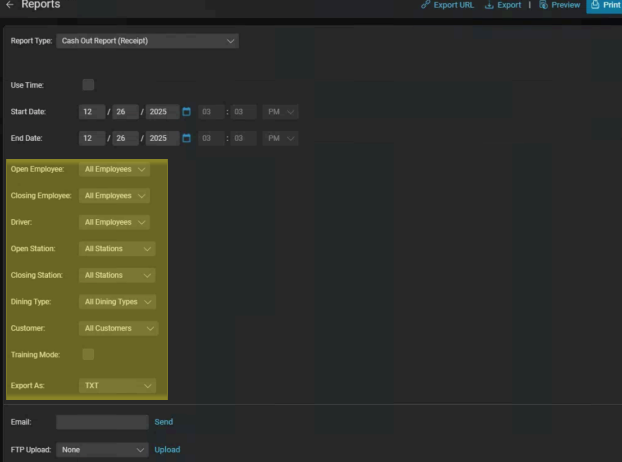
You can also set other parameters for certain reports, such as opening / closing employees, sales from specific stations, certain dining types, and choose the file export type (if you decide to export or email it).
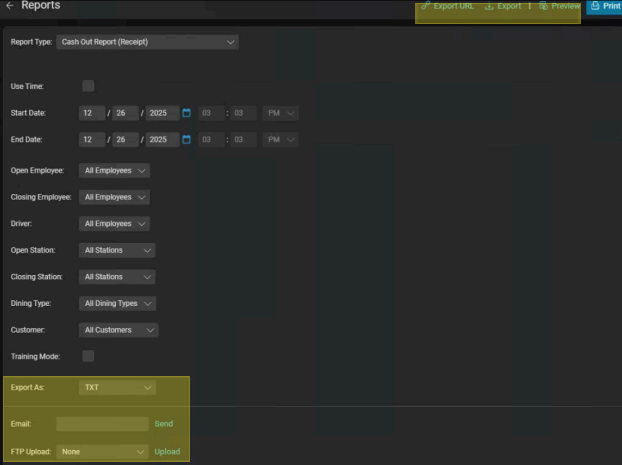
Finally, we can export, preview, print, or email the report by using the bottom and top buttons. Export will allow you to save it on the POS or a flash drive, preview will let you look at the report contents on the POS screen, print will print the report to the built-in printer or a full-sized printer (depending on the report), and the email section will let you email the report to whatever email you enter.