← Back to Support

How to Edit Your Kiosk Order Flow

Save as PDF

Front of House

Core | Enterprise

This Is a step-by-step guide on how to edit your Kiosk order flow in Mynt.

  • Open “Management” through the login screen.
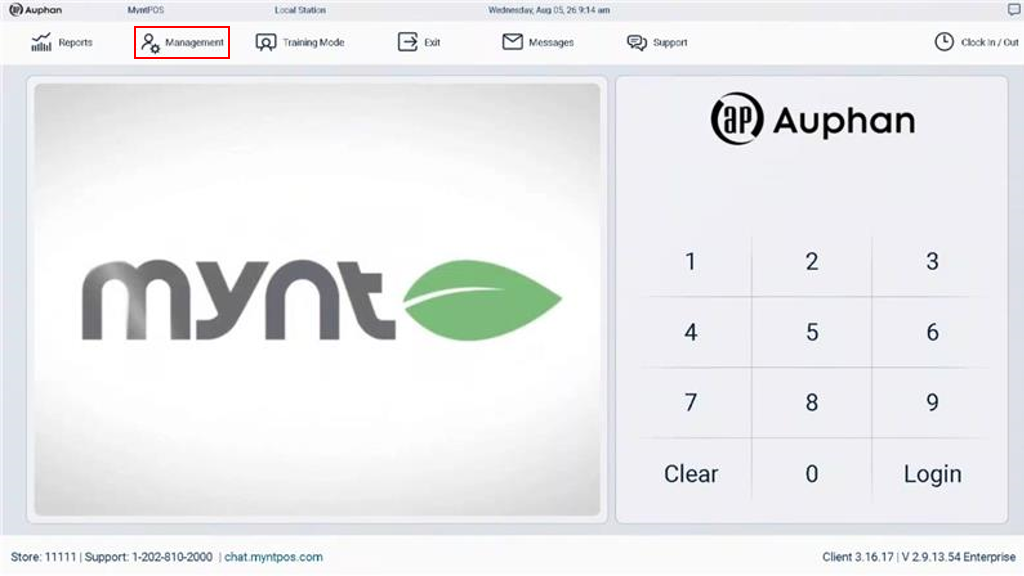
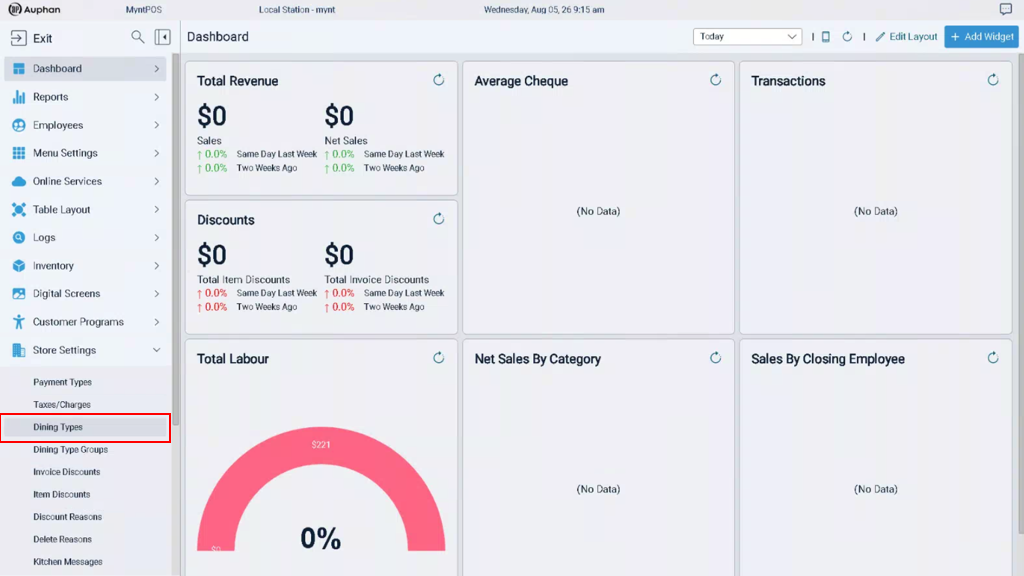
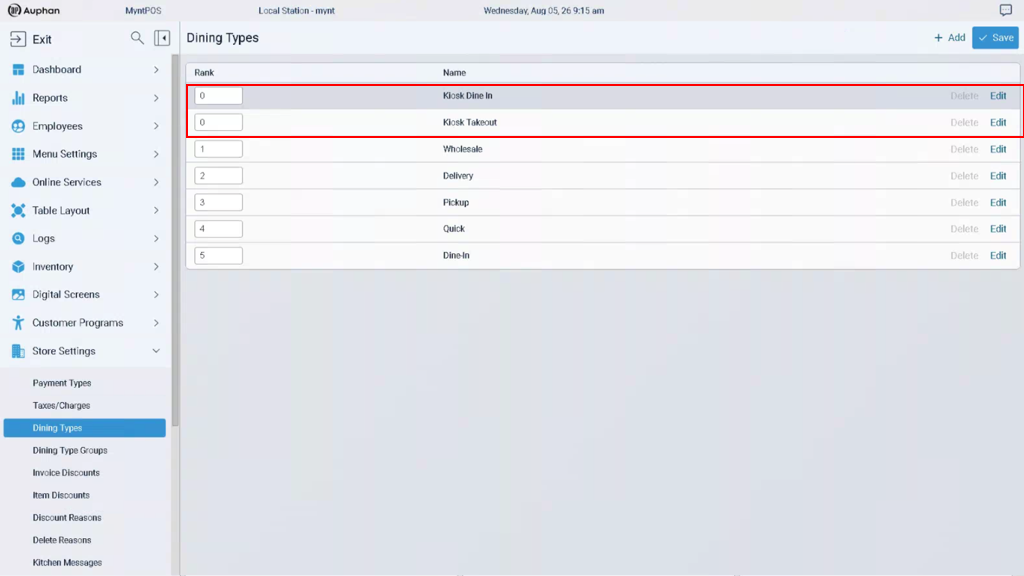
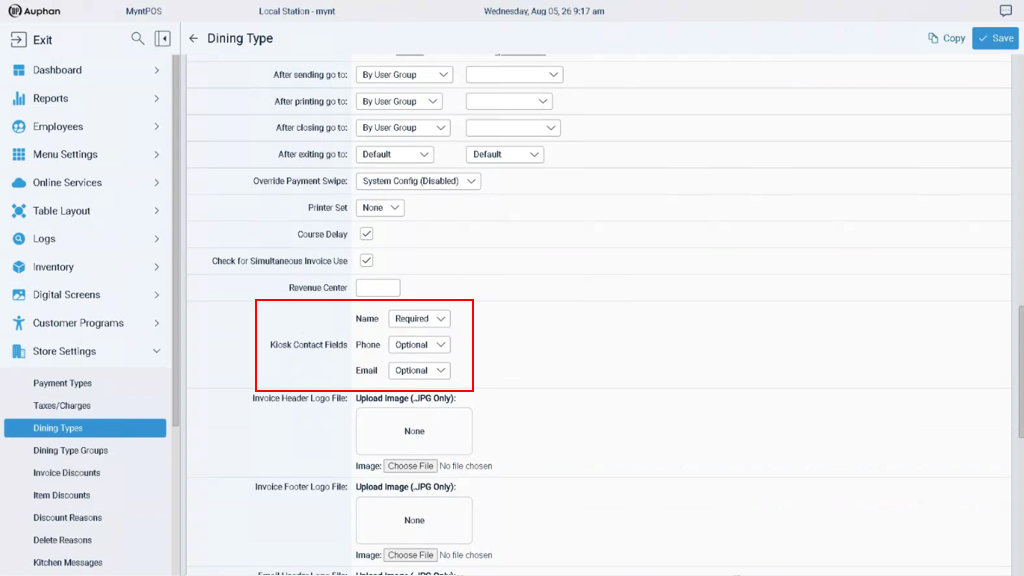
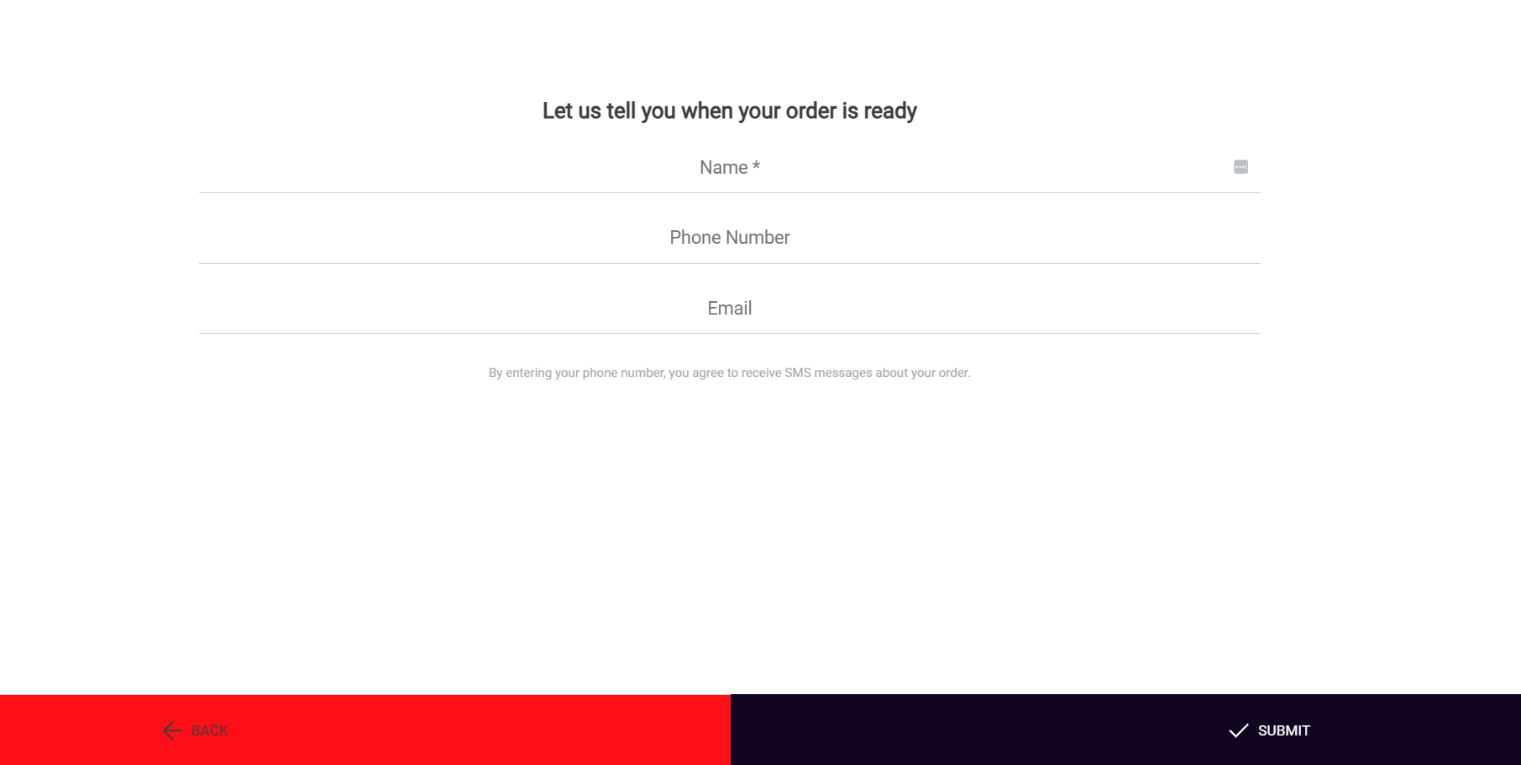
Kiosk order flow: Mynt login screen with the Management button highlighted. Mynt Management dashboard with Dining Types highlighted under Store Settings. Navigate to “Dining Types” under “Store Settings”. Dining Types list with Kiosk Dine In and Kiosk Takeout highlighted. Kiosks use the “Kiosk Dine In” and “Kiosk Takeout” Dining Types, depending on the option chosen by the customer. Dining Type settings with Kiosk Contact Fields highlighted: Name is Required, while Phone and Email are Optional. There are many configurations you can edit for Dining Types, but the most important consideration for Kiosks specifically will be the “Kiosk Contact Fields”. These determine the information the customer will be prompted to enter when an order is placed. Kiosk order flow contact screen prompting the customer to enter a required name and optional phone number and email. IMPORTANT NOTE: Ensure the proper Contact Fields are set for both “Kiosk Dine In” and “Kiosk Takeout” respectively. How to configure your workflow in Mynt.
Congratulations! You can now successfully configure your Kiosk Order Flow!

Need Another Resource?

Find more answers in the Resource Library.

Explore Our Library

Download the PDF

Save a copy to keep handy or share with your team.

Save PDF Guide

Still Need a Hand?

If you still need help, reach out to Mynt Support.

Call Mynt Support (Option 5)