
Mynt Core & Enterprise – How to Set Up and Use Remote Access
This Is a step-by-step guide on how to configure and use both methods of remote access in Mynt.
- Username and Password
- Auphan ID
Method 1 – Username and Password
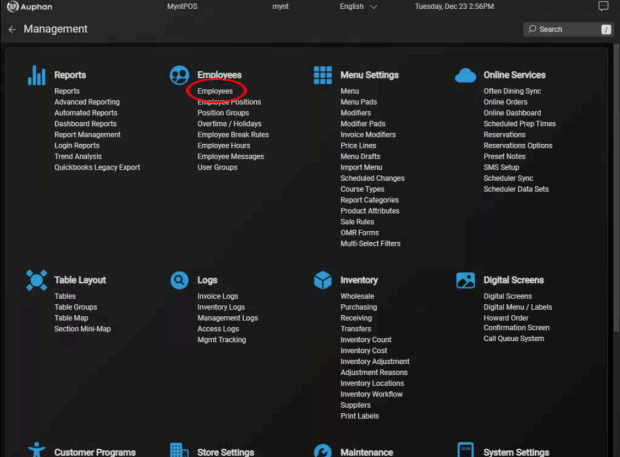
Open “Employees” under the “Employees” section in Management.
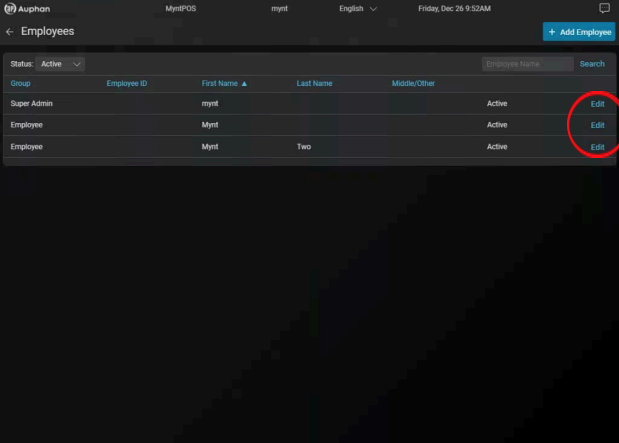
Open the Employee you wish to grant Remote Access to by pressing “Edit”.
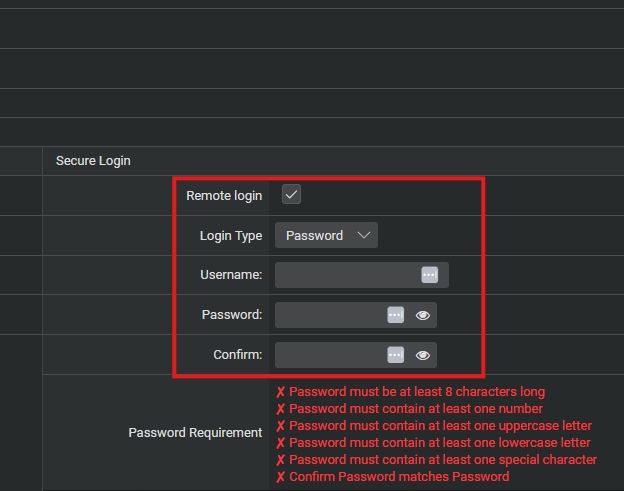
Scroll to the bottom right, under the “Secure Login” field. Ensure “Remote login” is checked. Set “Login Type” to “Password”, then enter a Username and Password, following the requirements below.
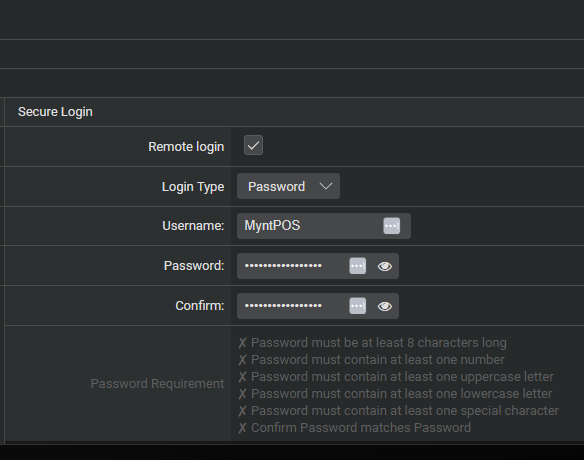
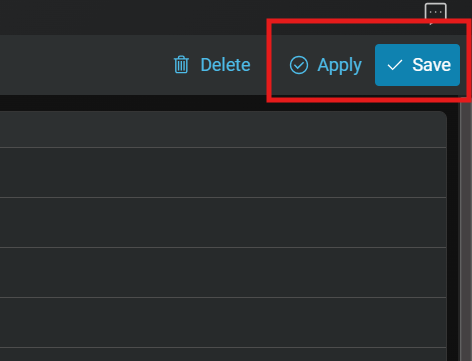
Save these changes.
Now, the setup is complete in Mynt. Repeat these steps for any employees you would like to grant remote login access.
The website for the remote login is: https://www.auphansoftware.com/customer/login.php
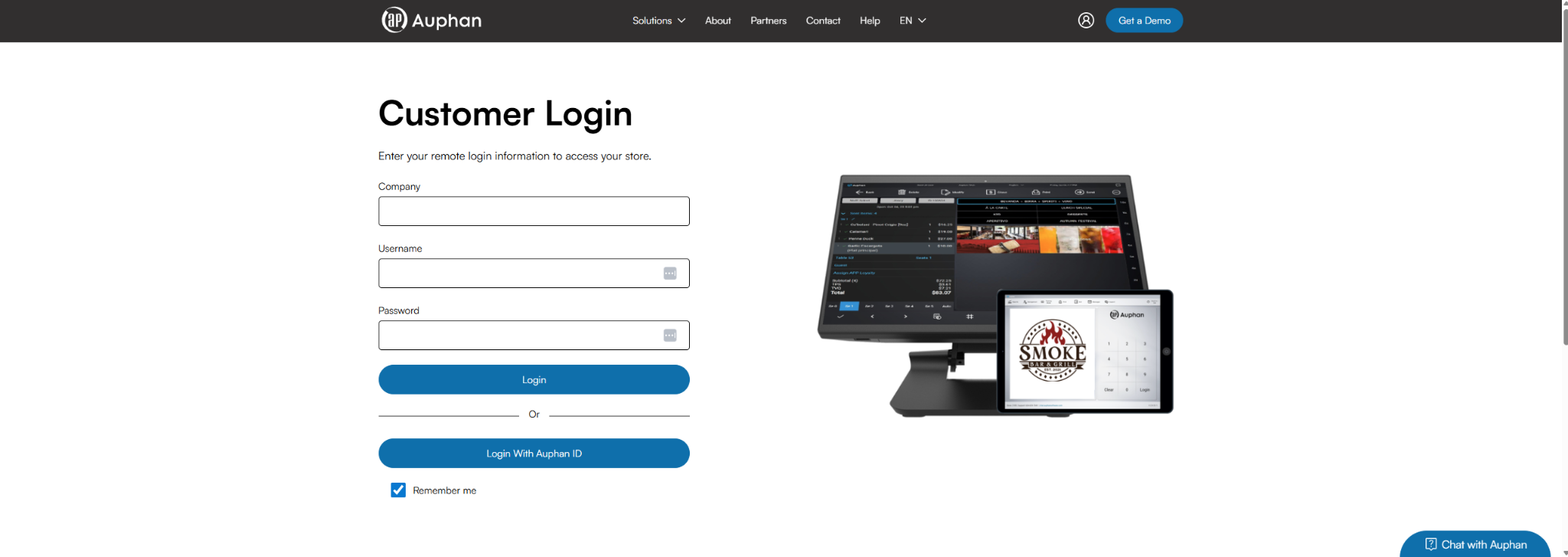
After the credentials are entered, you can press the “Login” button to continue.
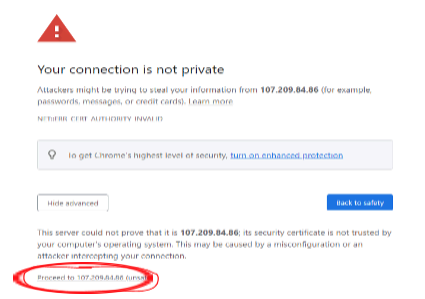
When logging in for the first time, you might receive a message about the connection not being private. This is a normal firewall procedure, you can continue past it by pressing “Advanced”. Then “Proceed”.
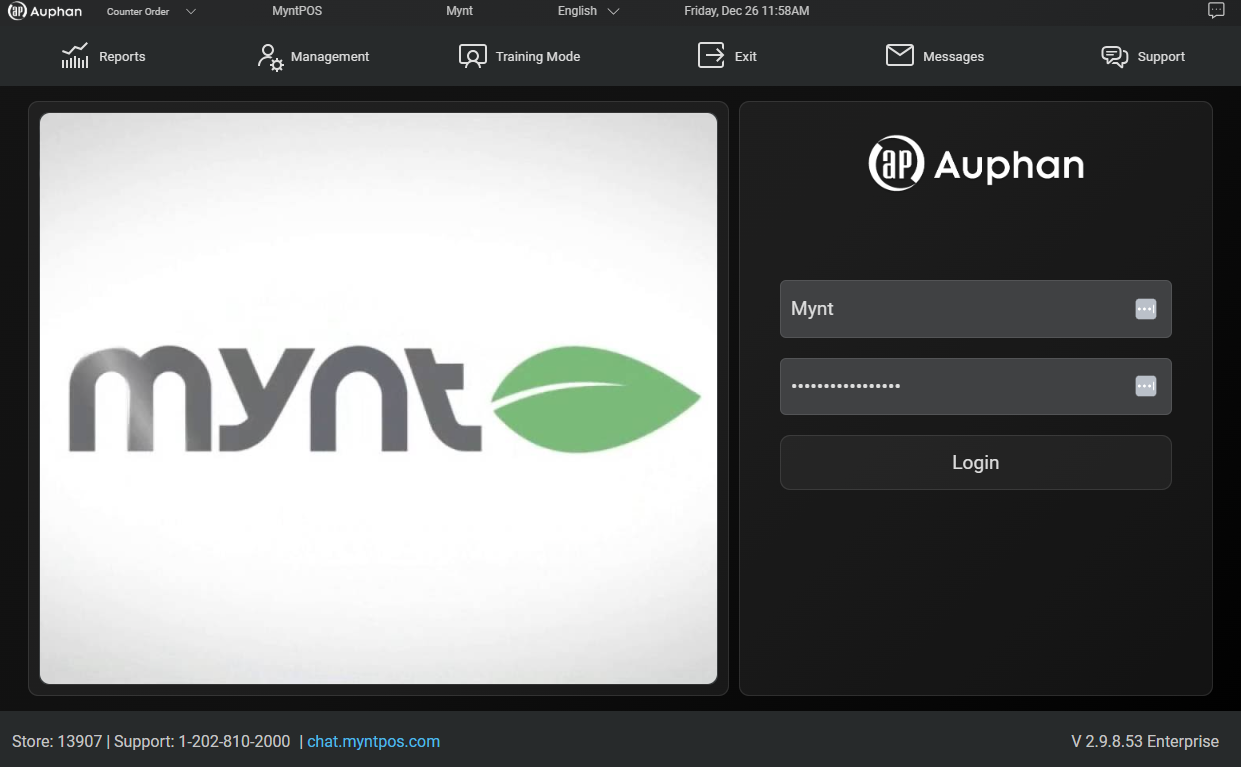
After using the login button, a window will open with the normal Mynt screen you are used to. The username and password will automatically be filled out, and you can just use the remote system as you wish! Please Note that if you login and add tickets, or make any changes, it will add them in real time to the POS.
Method 2 – Auphan ID
The advantage of Auphan ID is the ability to tie multiple locations to one account, rather than having to track multiple different logins. This is especially useful for agents.
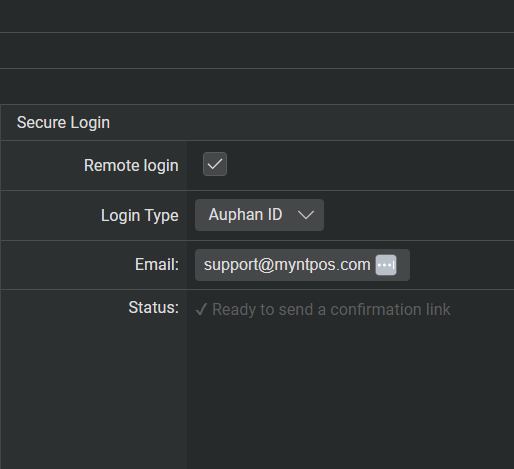
Change the Login Type to “Auphan ID” under the Secure Login section of the Employee profile editor and then enter your email address.
After saving, you will be sent an email with a link to set up your Auphan account.
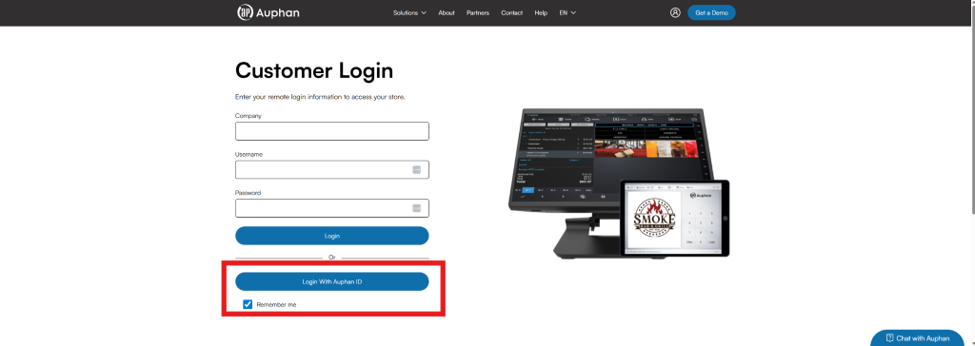
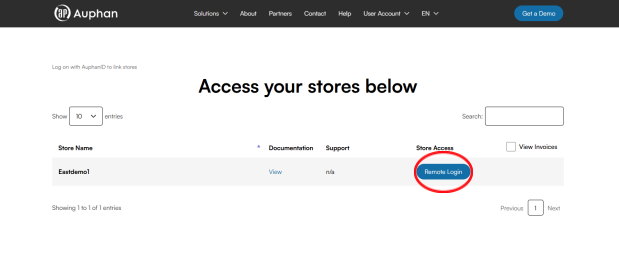
Use the “Login With Auphan ID” option.
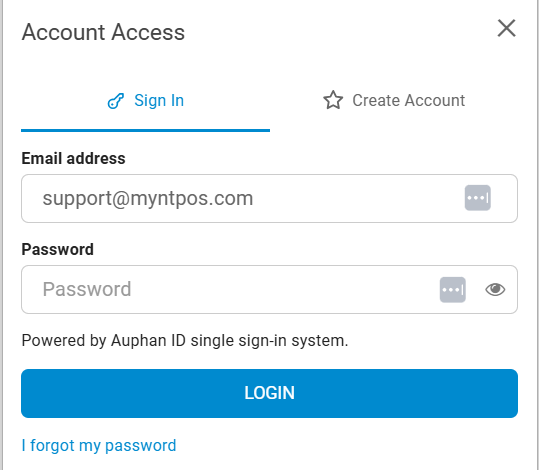
Use your recently created Auphan credentials to login. From here, the remote login functions the same as the previous method.

