
Retail Order Management
Mynt Retail
This Is a step-by-step guide on Order Management in Mynt Retail.
Adding an Item to the Cart
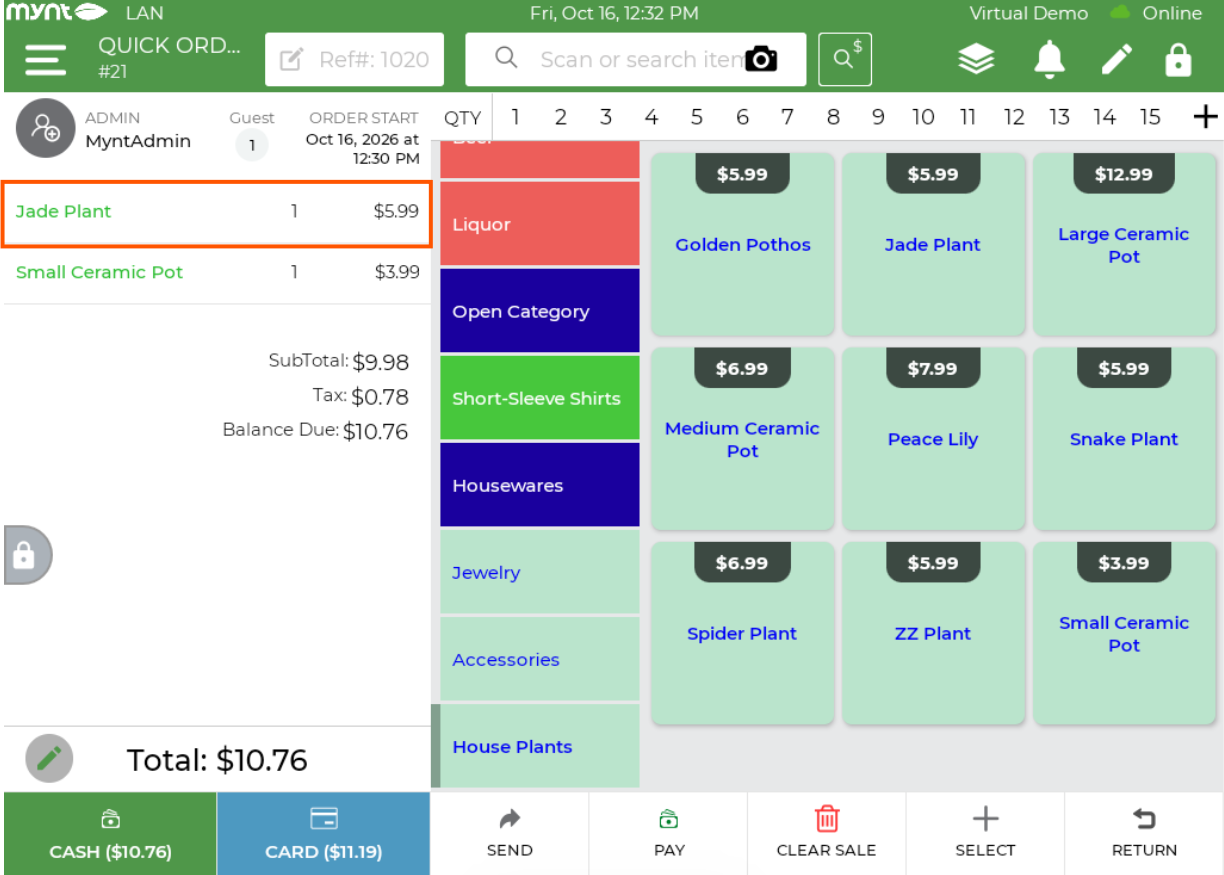
Items can be added to the invoice either by Scanning the barcode or navigating to the category and selecting the item.
Adding an Item to the Catalog
Items can be added either by scanning in a new barcode while in the invoice screen, or by navigating to “POS Operations” and selecting “Add Item”.
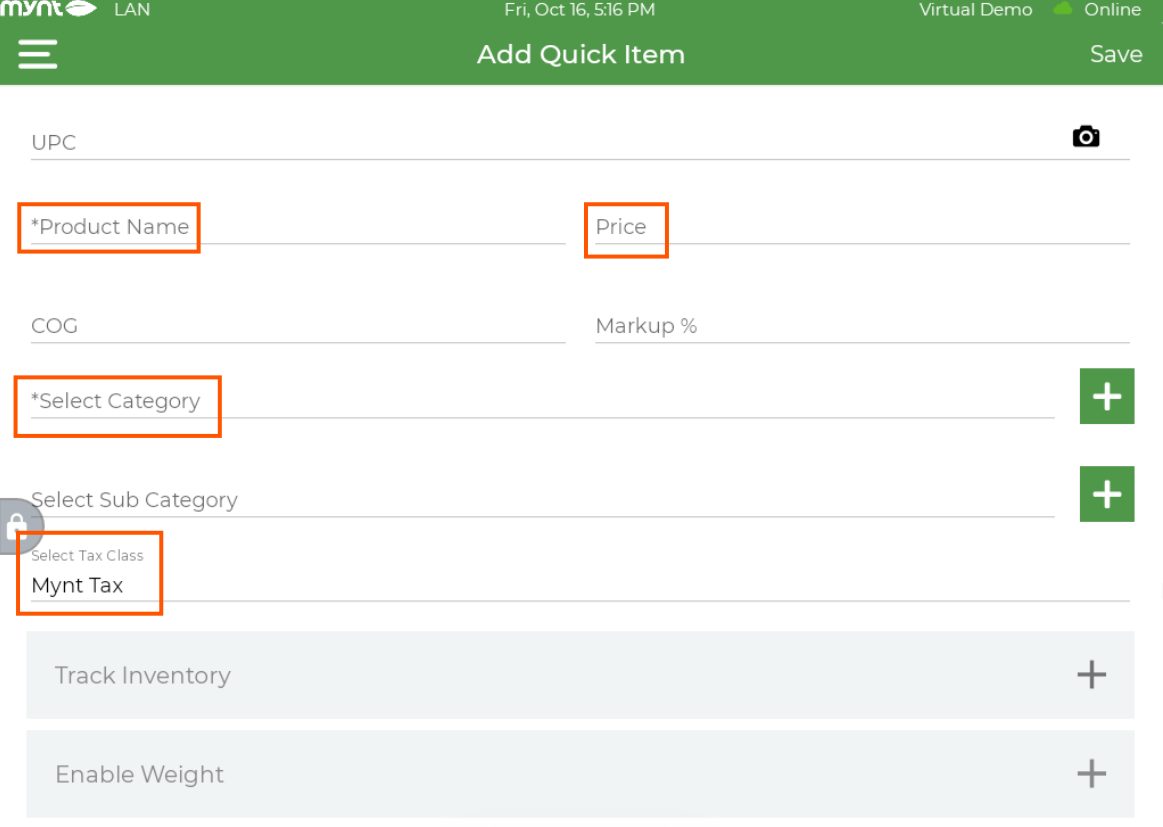
Both of these methods will pull up the “Add Quick Item “ screen. Fill out the fields above, and then press “Save” in the top right. If the item’s barcode was scanned in through the invoice screen, the “SKU” will already be entered.
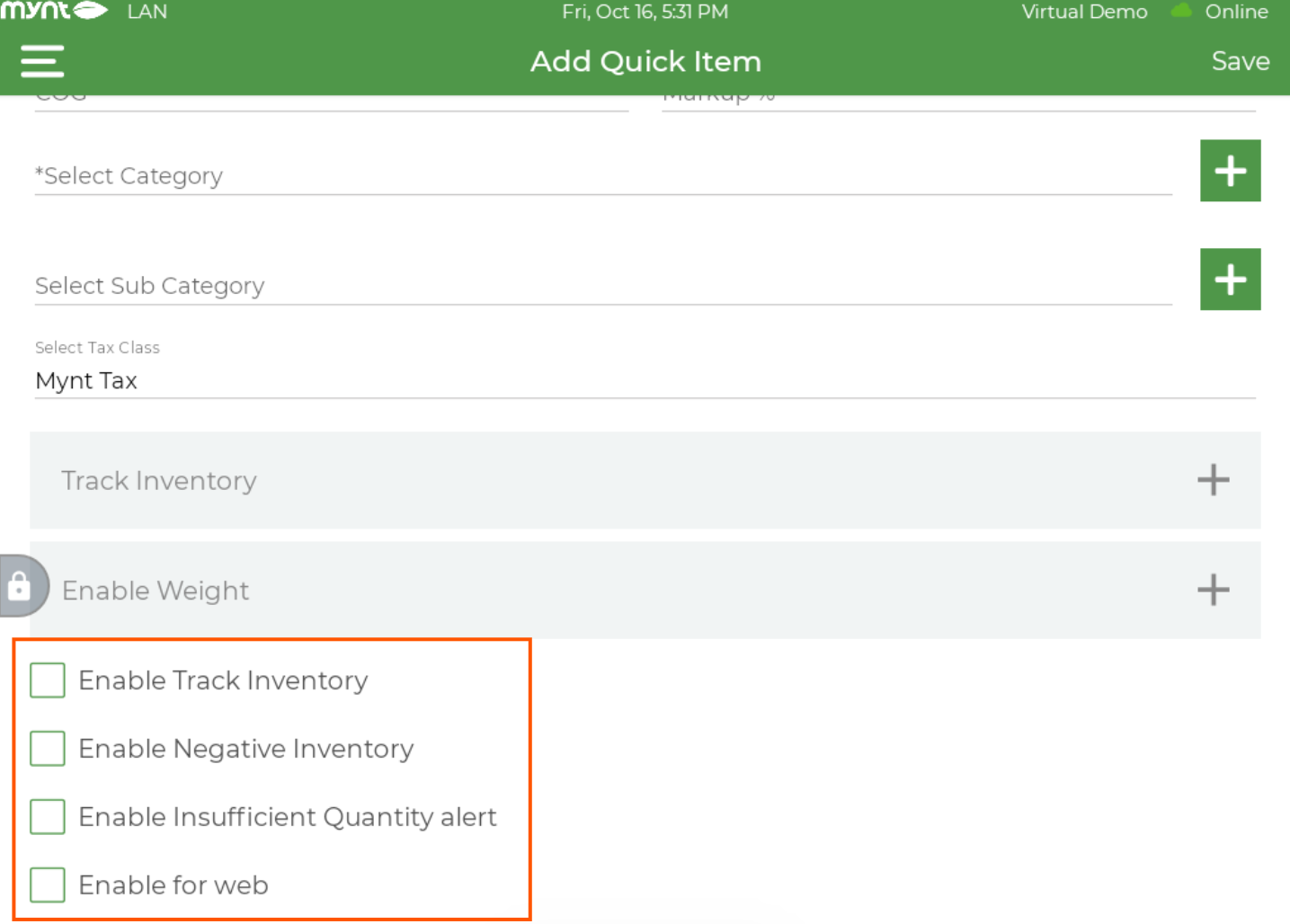
“Track Inventory” can be enabled as seen in the above screenshot.
By enabling “Negative Inventory”, you will be able to sell the product, even when the count of the inventory is less than zero.
If the “Insufficient Quantity Alert” is enabled, it will alert you to reorder the item before the count reaches zero.
Applying a Discount to the Entire Order
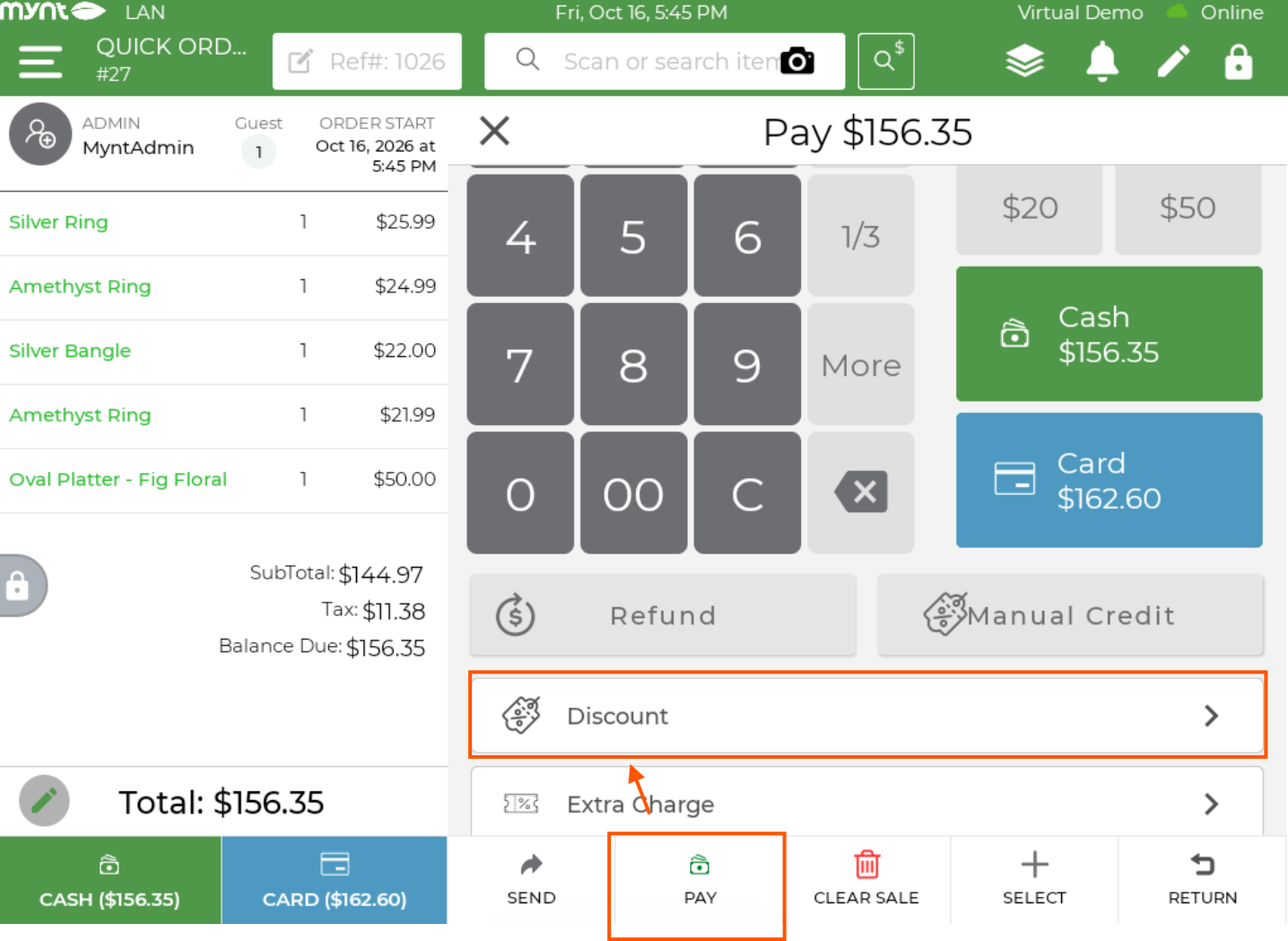
On the Invoice Screen, press the “Pay” button on the bottom, and scroll down to “Discount”.
Enter the discount % or discount $ and enter the reason for a discount. You can also select the discount reason from the predefined reasons.
Applying a Discount to an item
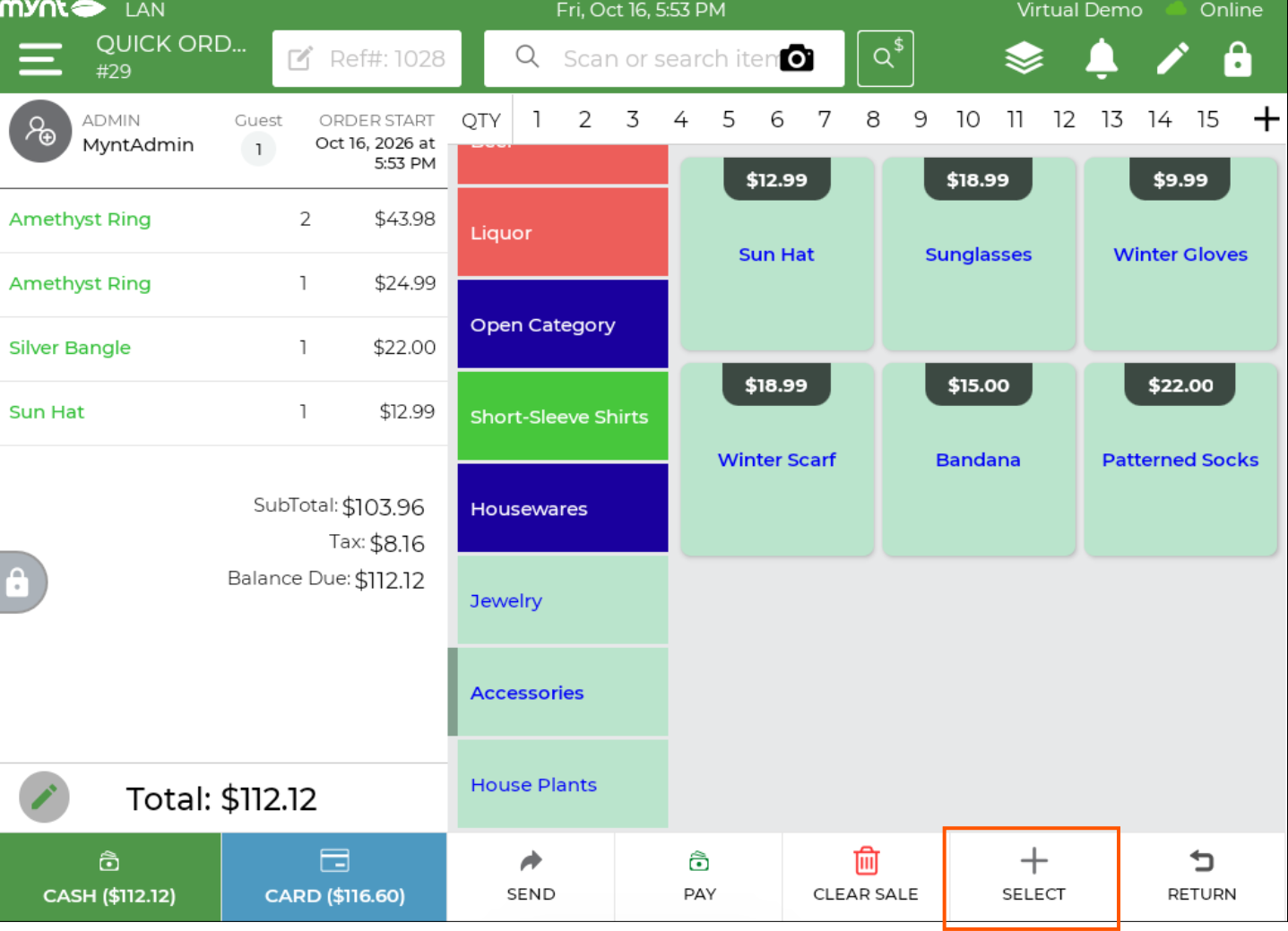
Press the “Select” button on the bottom.
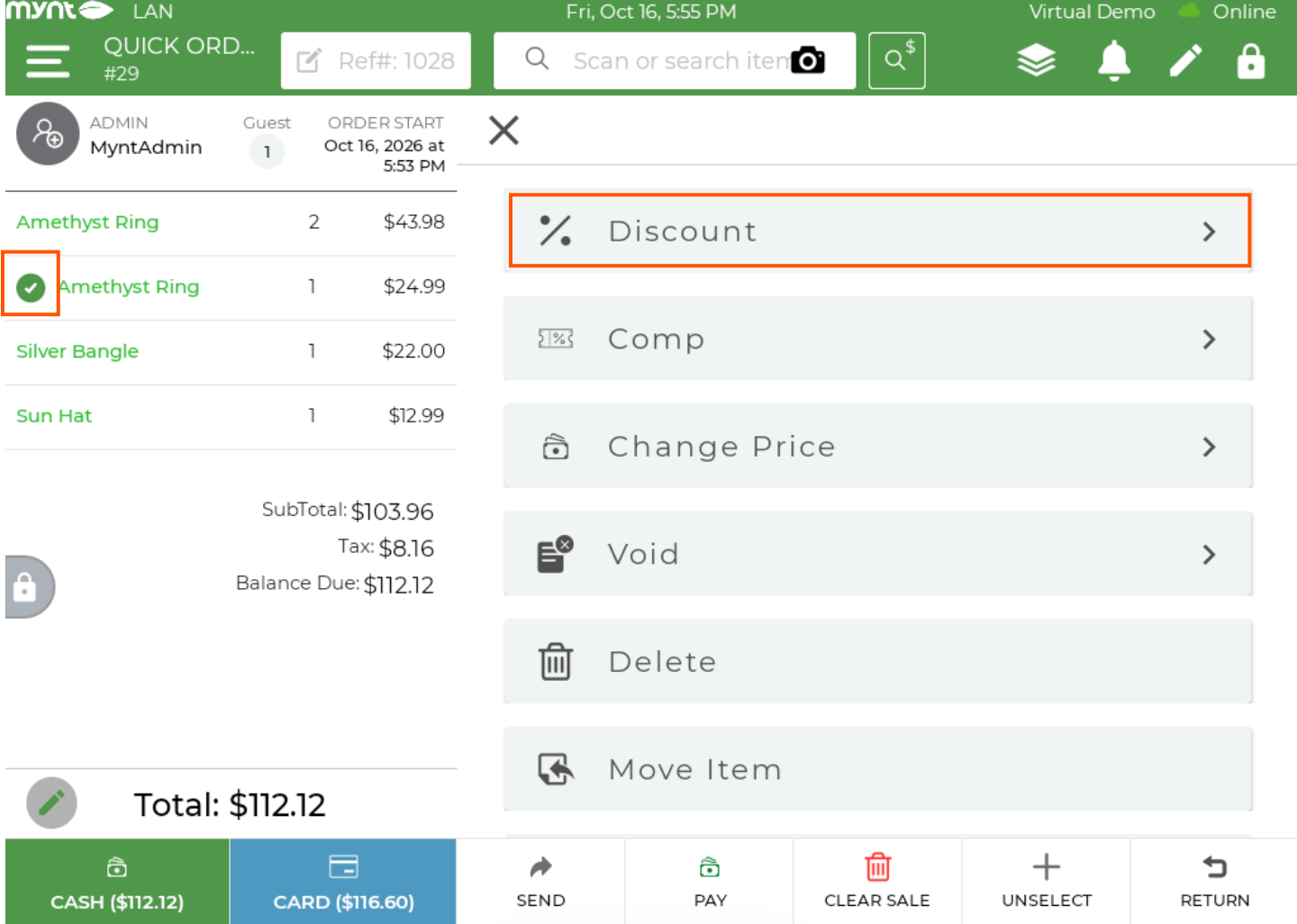
Select the item(s) that you would like to discount, and then press the “Discount” button.
Enter the discount % or discount $ and enter the reason for a discount. You can also select the discount reason from the predefined reasons

