← Back to Support

Timeclock Management

Set timeclock permissions, manage employee punches, and print shift summaries in Mynt Retail.

Save as PDF

Back of House | Mynt Retail

Core | Enterprise

Ensure your Roles / Employees are set up with the correct timeclock settings through Access Control on the backend Portal.
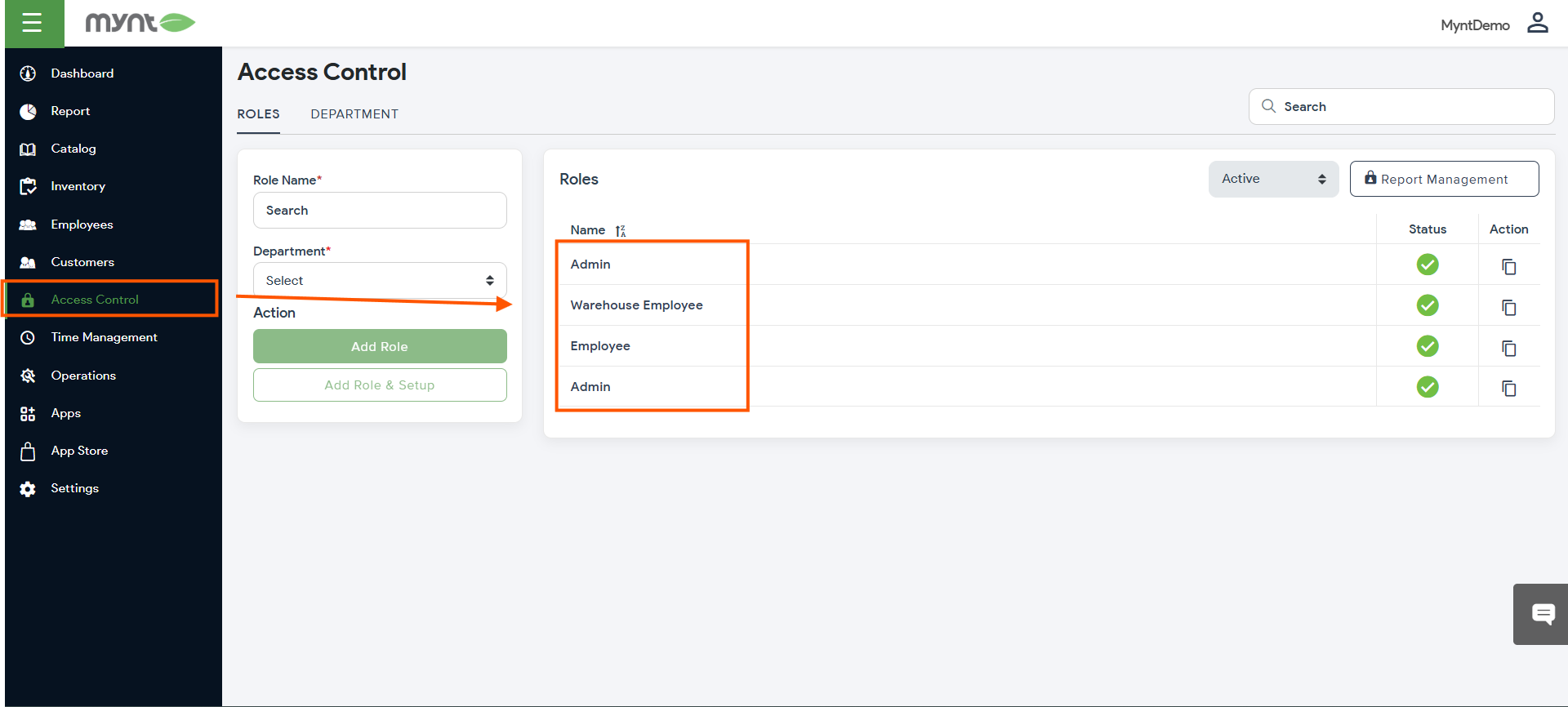
Mynt backend Portal Access Control roles list

Below are a few examples of time clock configurations you can add to Roles:
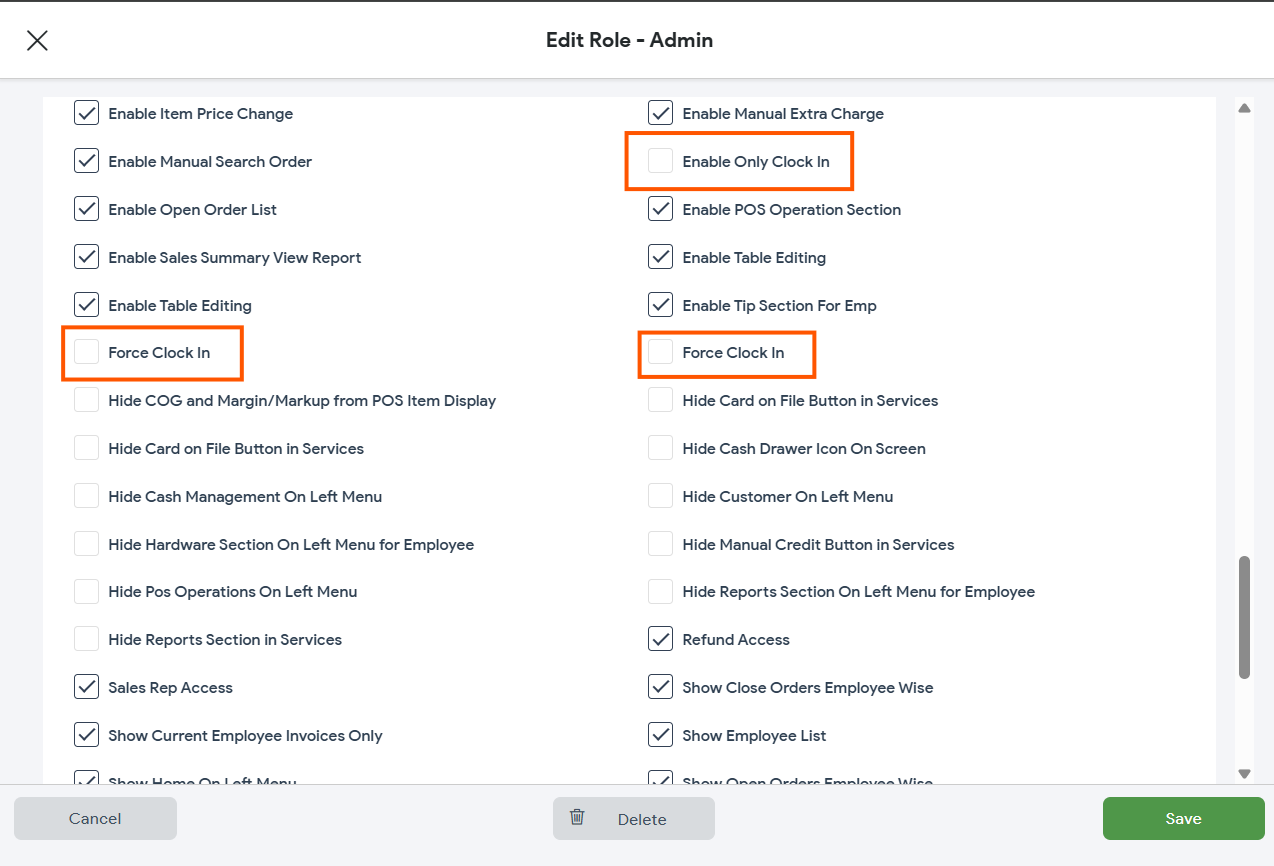
Mynt role configuration with timeclock permissions highlighted
Mynt additional role timeclock configuration options

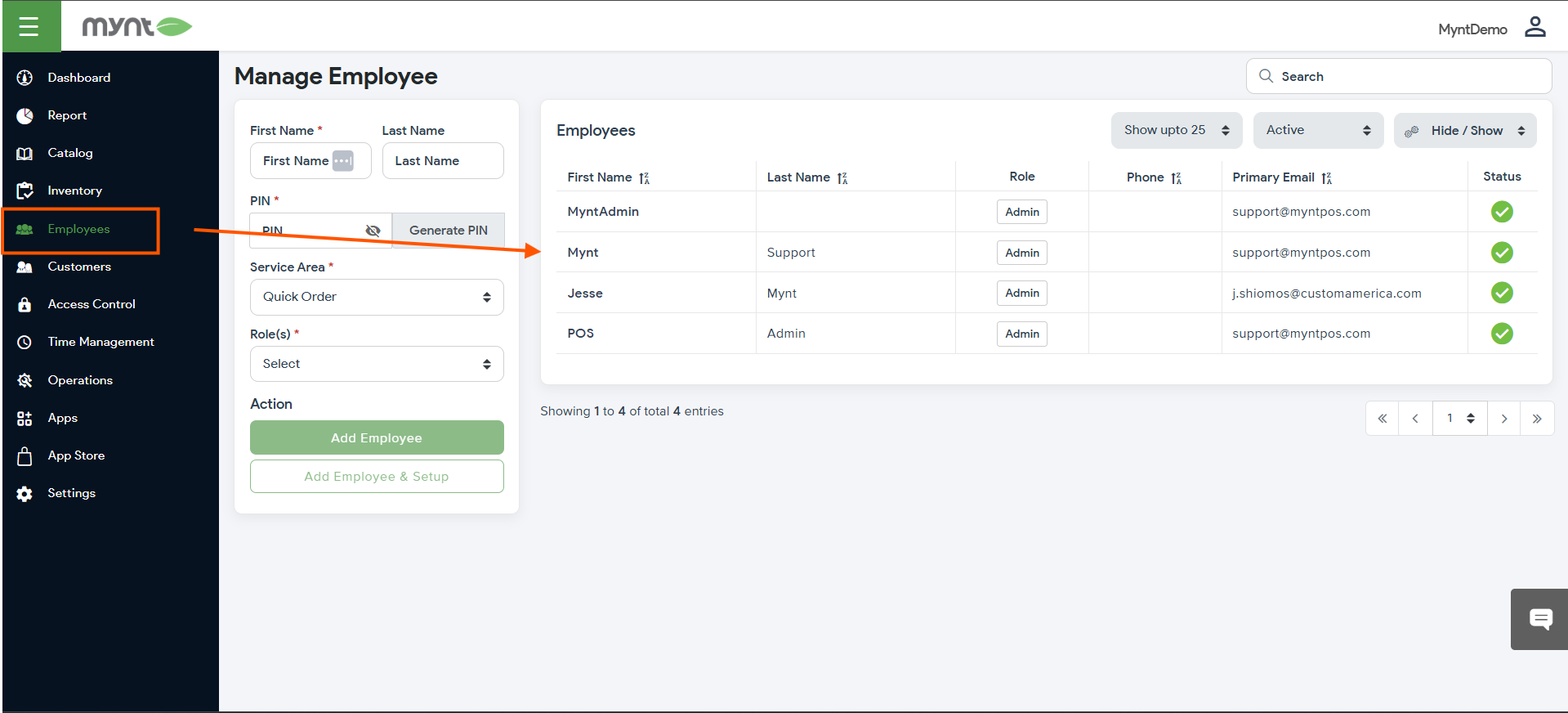
Employee Pay information can also be entered through the “Employees” tab in the backend Portal.
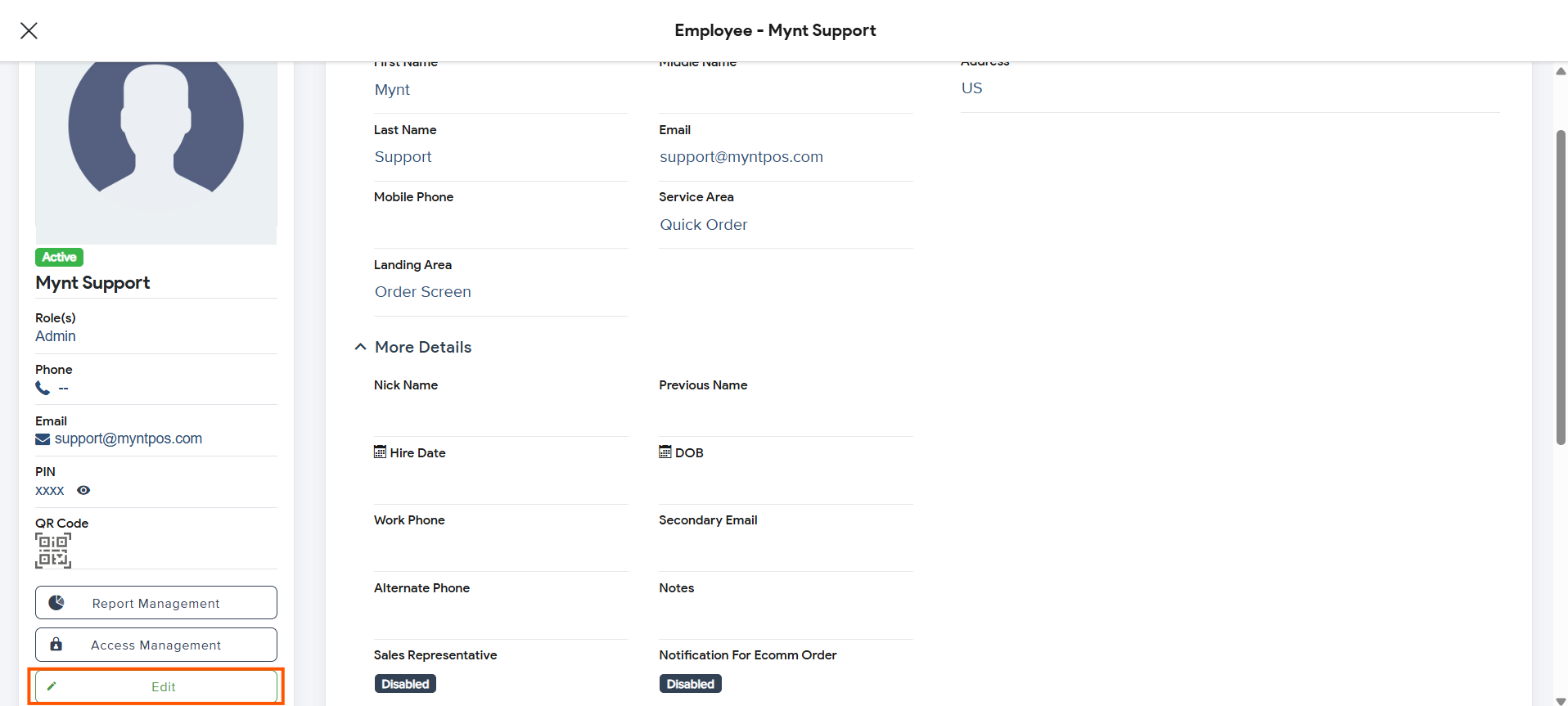
Mynt backend Portal employee profile and Edit option

Press “Edit”.

Open the “Payroll Info” tab and fill out the appropriate fields.
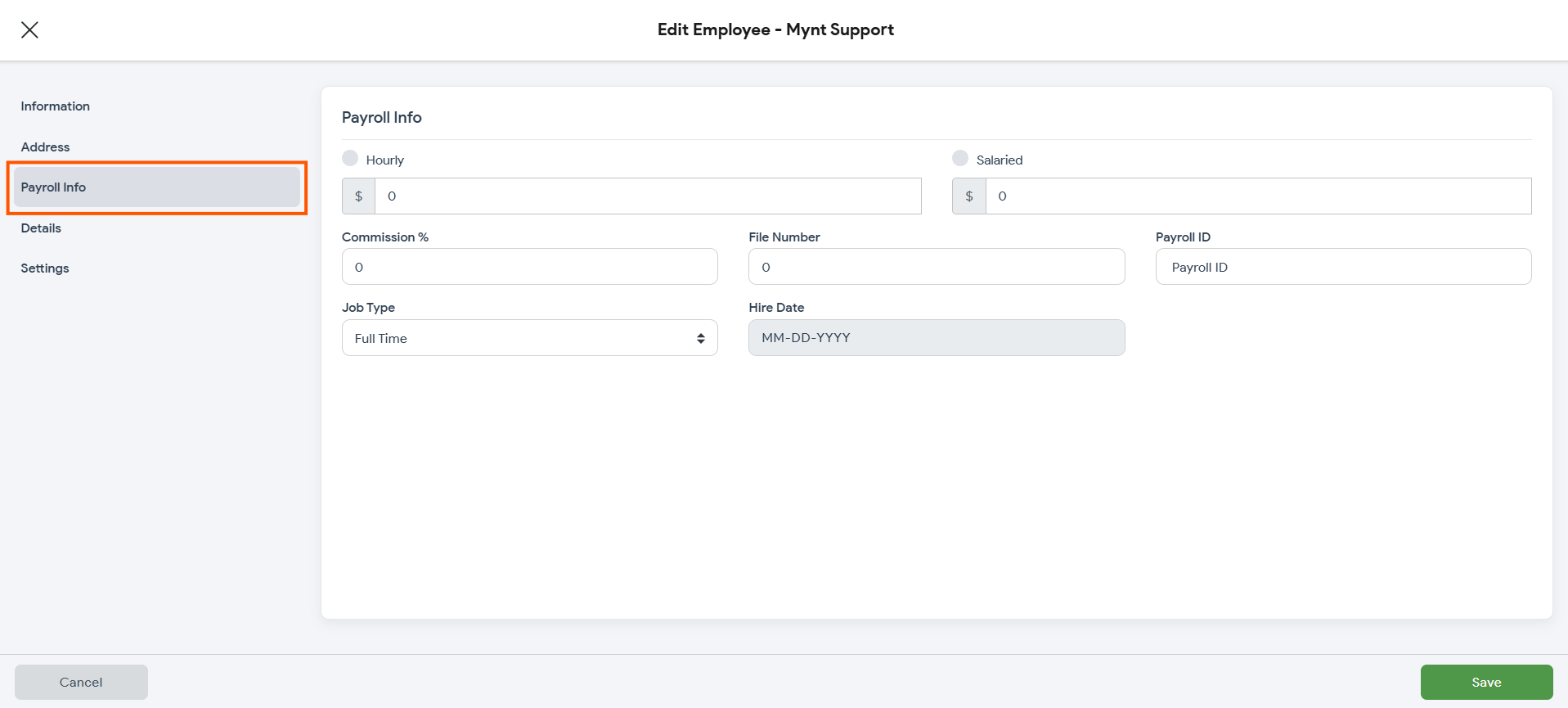
Mynt employee Payroll Info fields

Once the Timeclock and Employee information is configured correctly, navigate to the “Time Management” tab.
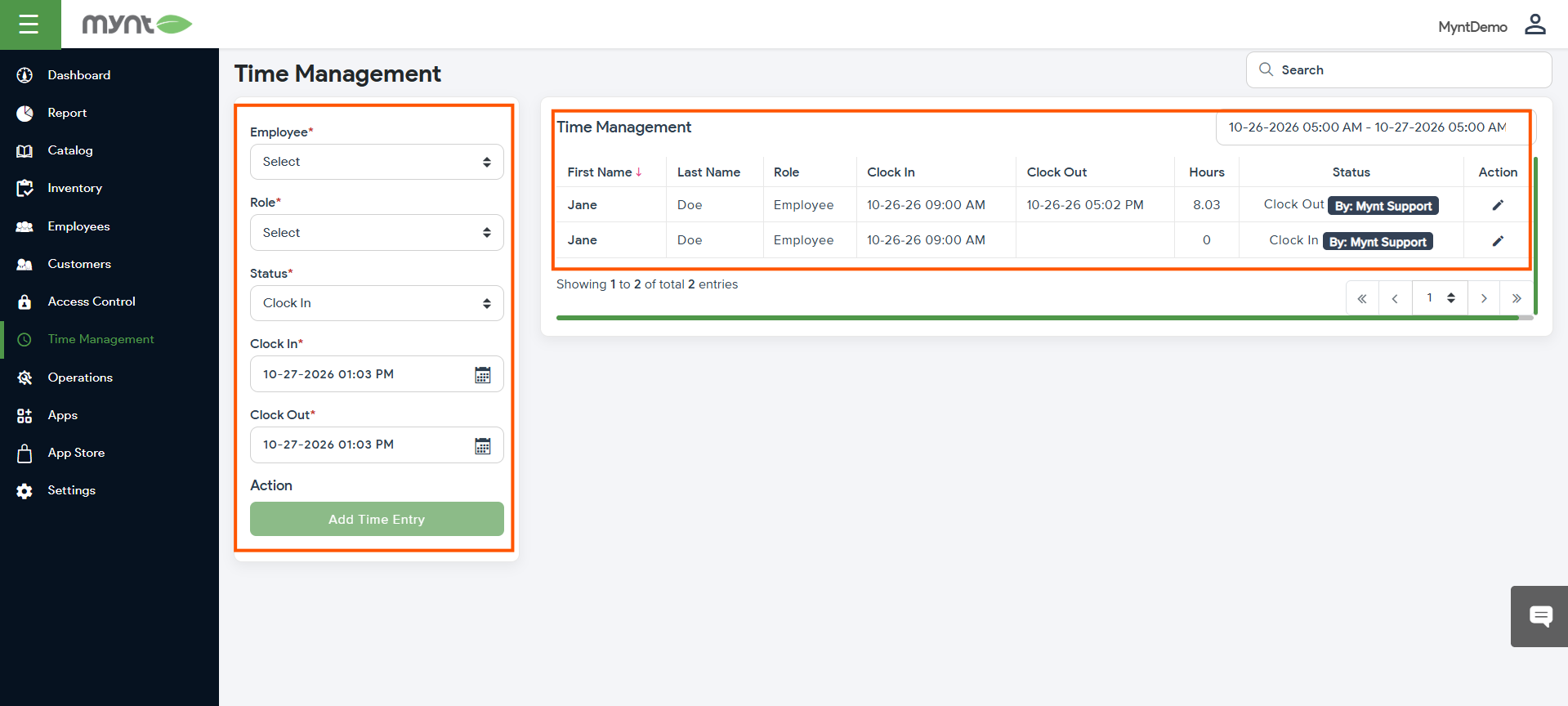
Mynt Time Management screen for adding and viewing employee clock entries

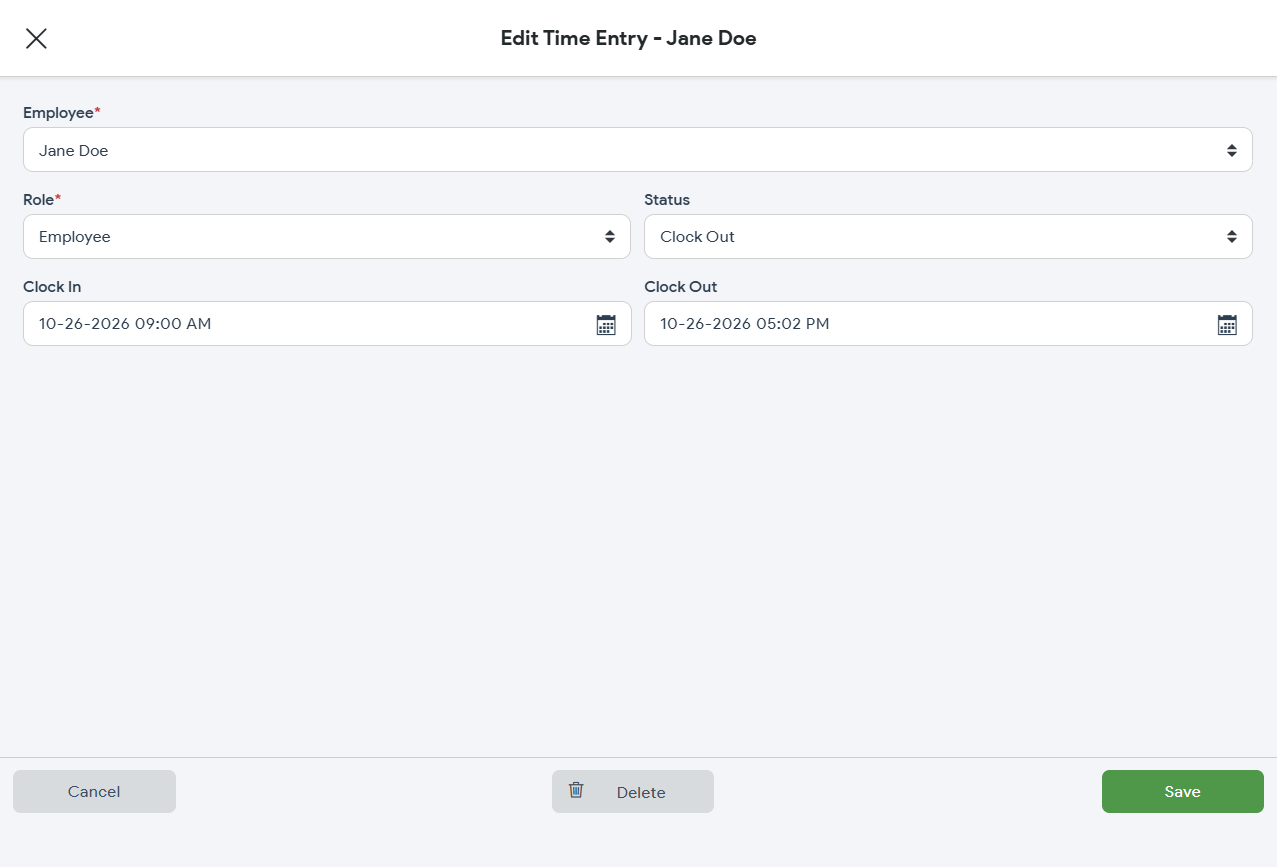
The box on the left can be used to clock your employees in or out. The box on the right displays the timeclock for all employees on the specified day. These hours can be adjusted by pressing the Pencil icon.
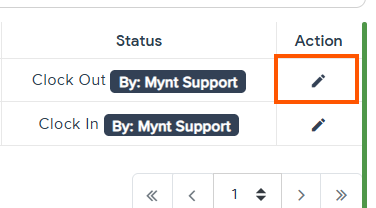
Mynt timeclock entry with edit pencil highlighted
Mynt edit time entry screen
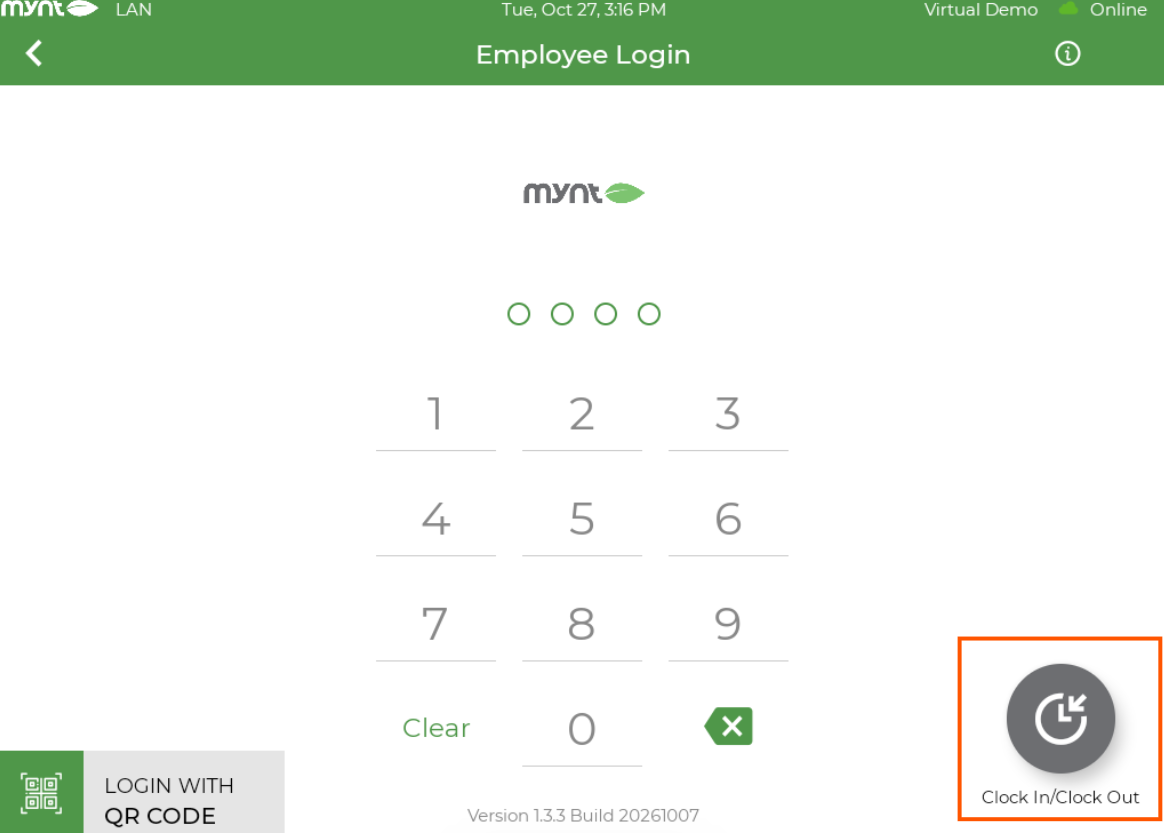
Mynt clock in clock out selection on employee login

Employees can clock in or out by tapping the “Clock In/Clock Out” button on the login screen and then entering their pin.
Mynt Employee Login screen with Clock In Clock Out highlighted

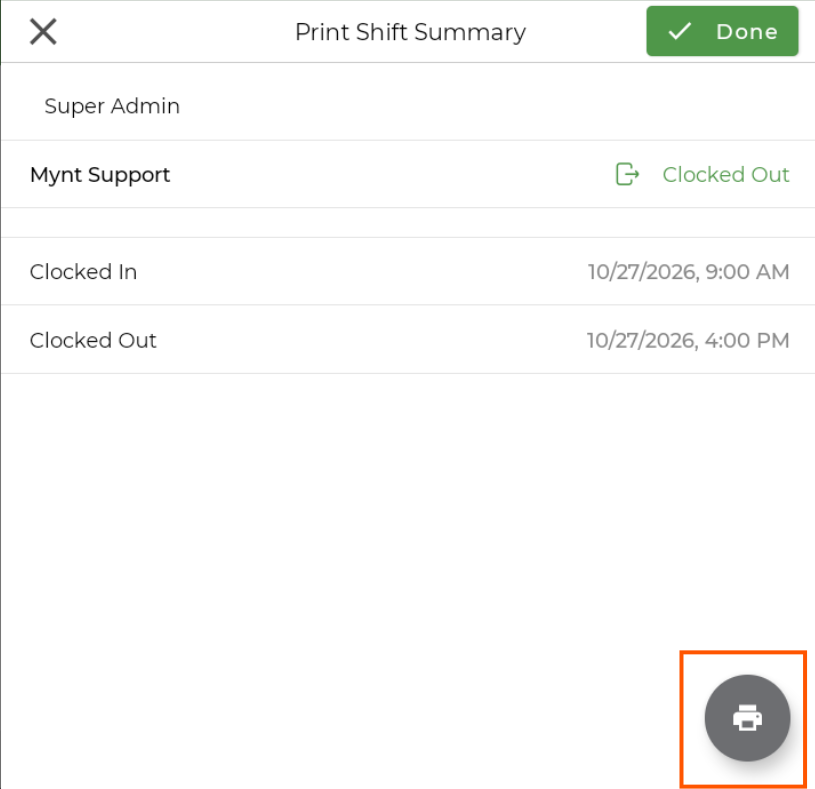
Shift Summaries can then be printed out by pressing the printer icon.

Need Another Resource?

Find more answers in the Resource Library.

Explore Our Library

Download the PDF

Save a copy to keep handy or share with your team.

Save PDF Guide

Still Need a Hand?

If you still need help, reach out to Mynt Support.

Call Mynt Support (Option 5)