← Back to Support

How to Return and Refund Orders

Find a closed order and process a full or partial refund in Mynt Retail.

Save as PDF

Front of House | Mynt Retail

Core | Enterprise

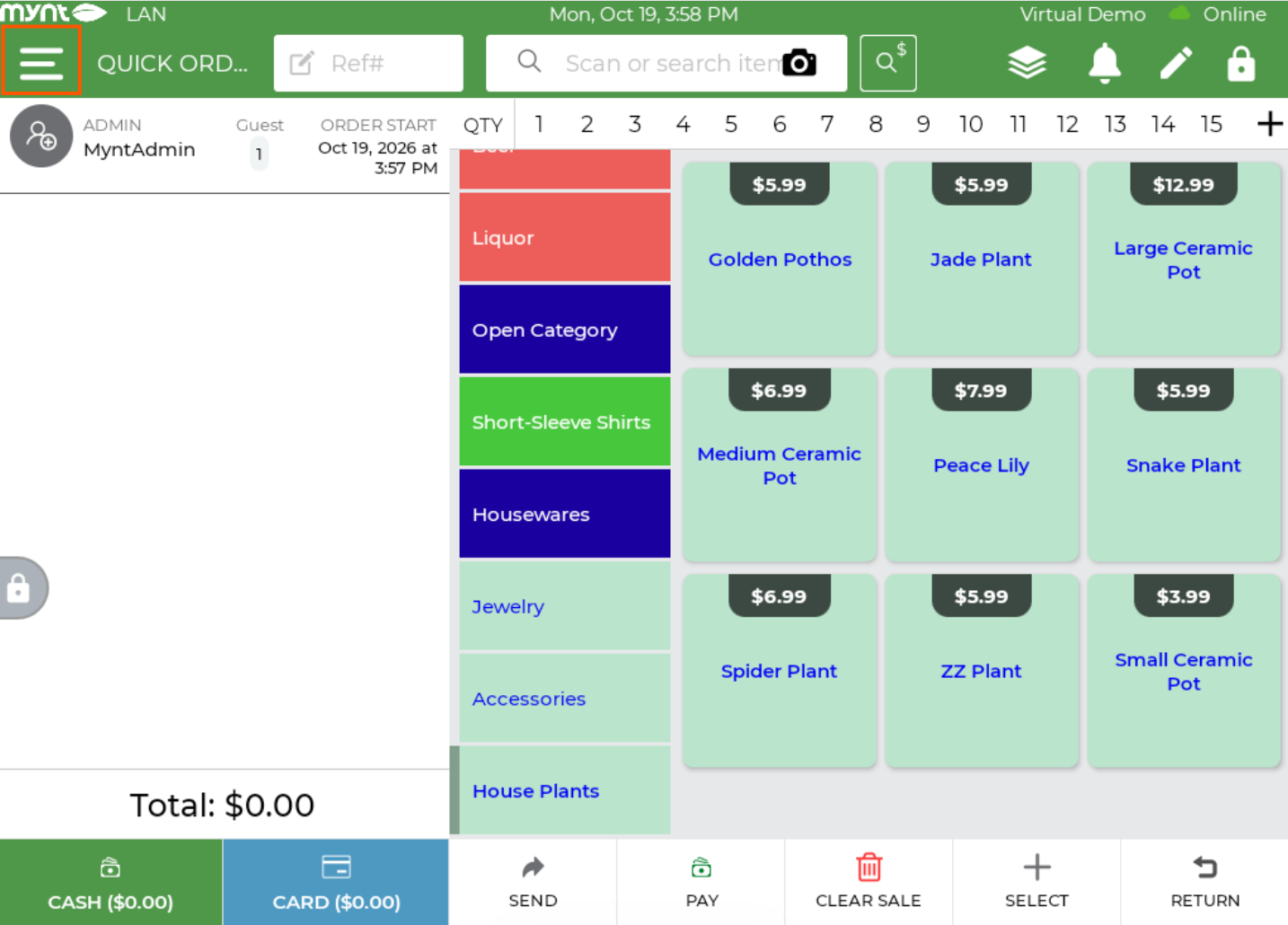
Mynt Retail POS screen with the menu icon at the top left

Press the three lines on the top left of the screen.
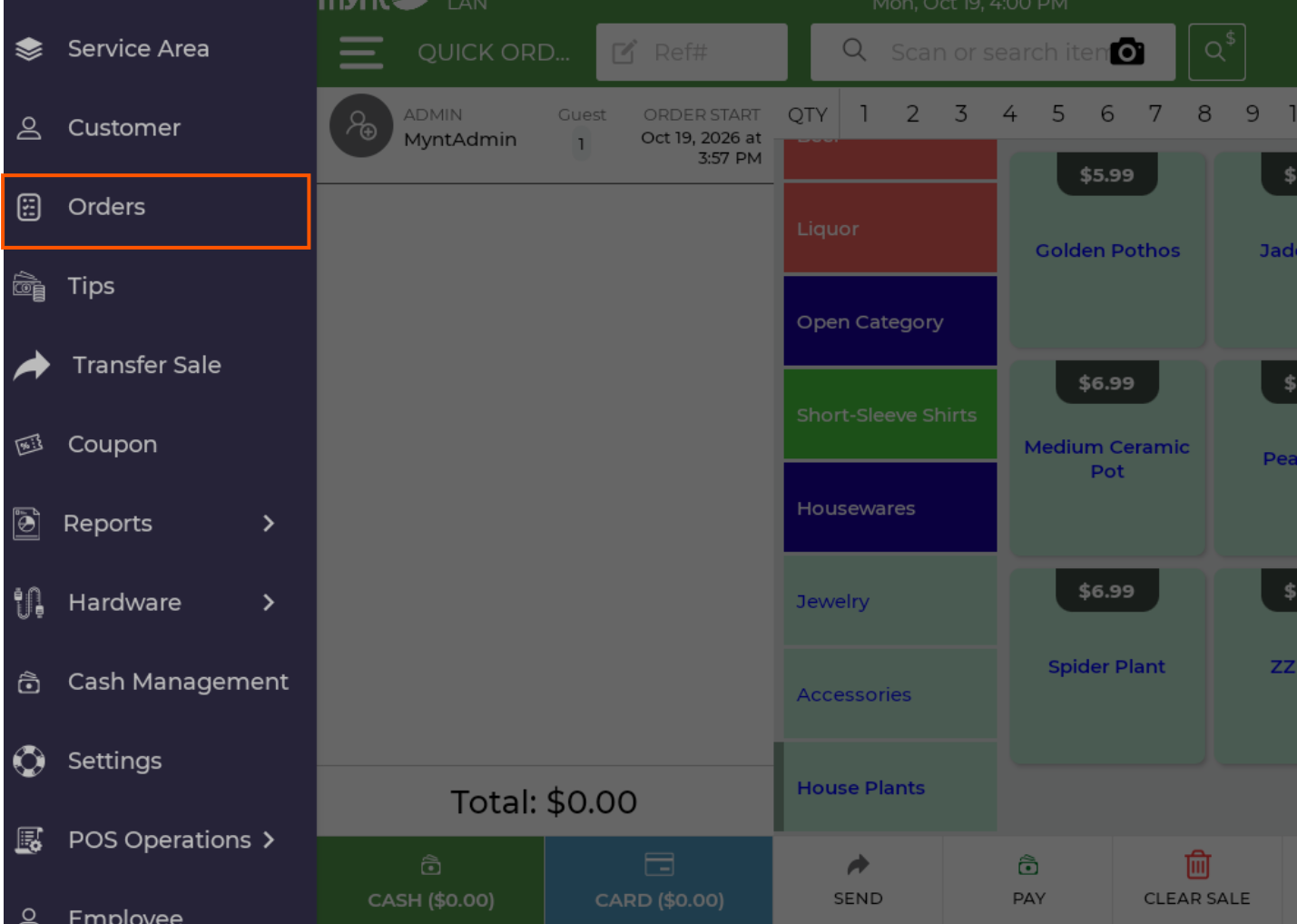
Mynt Retail side menu with Orders selected

Press “Orders”.

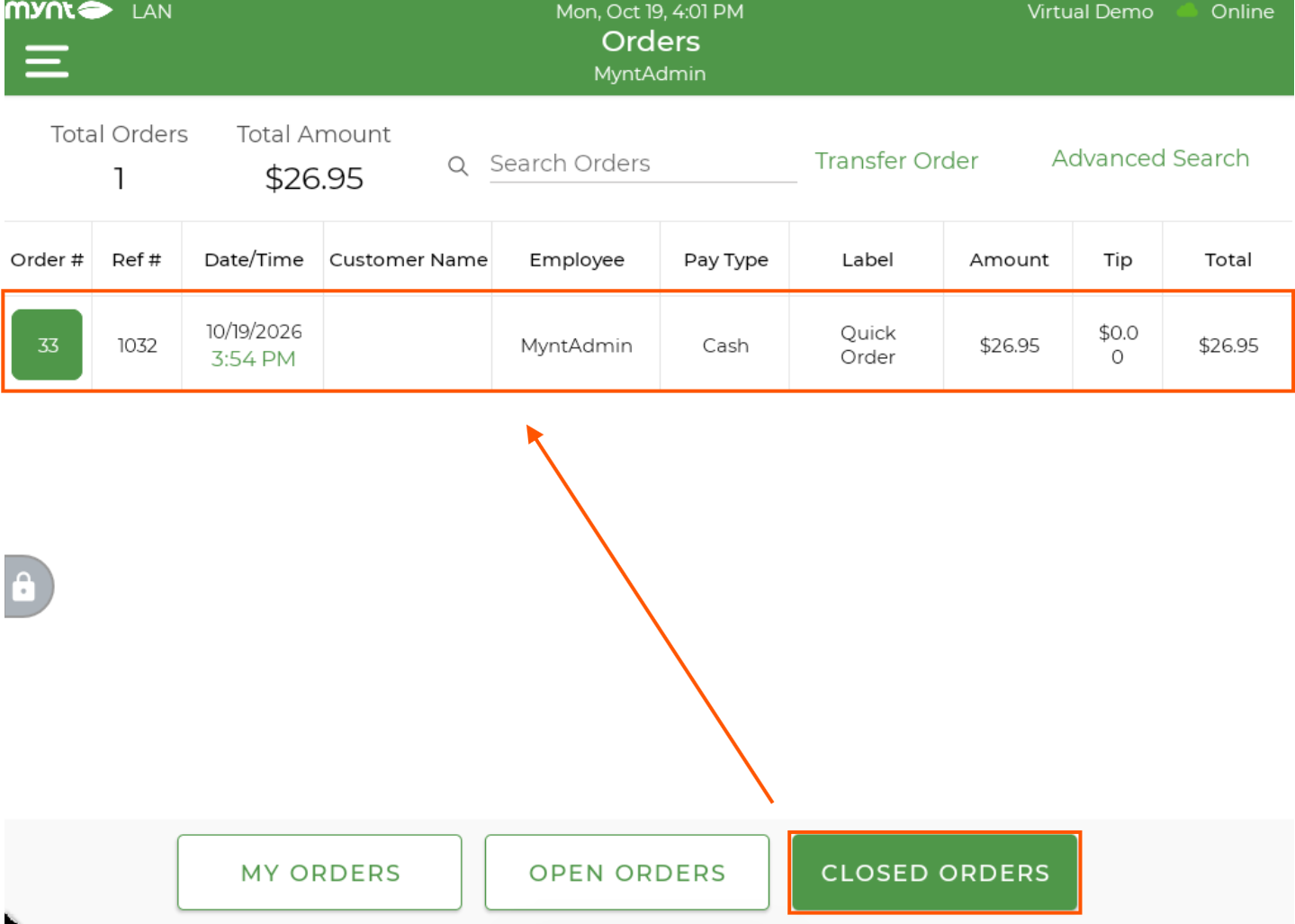
Mynt Retail Orders screen with Closed Orders selected

Select “Closed Orders”, and then press the order you would like to refund.
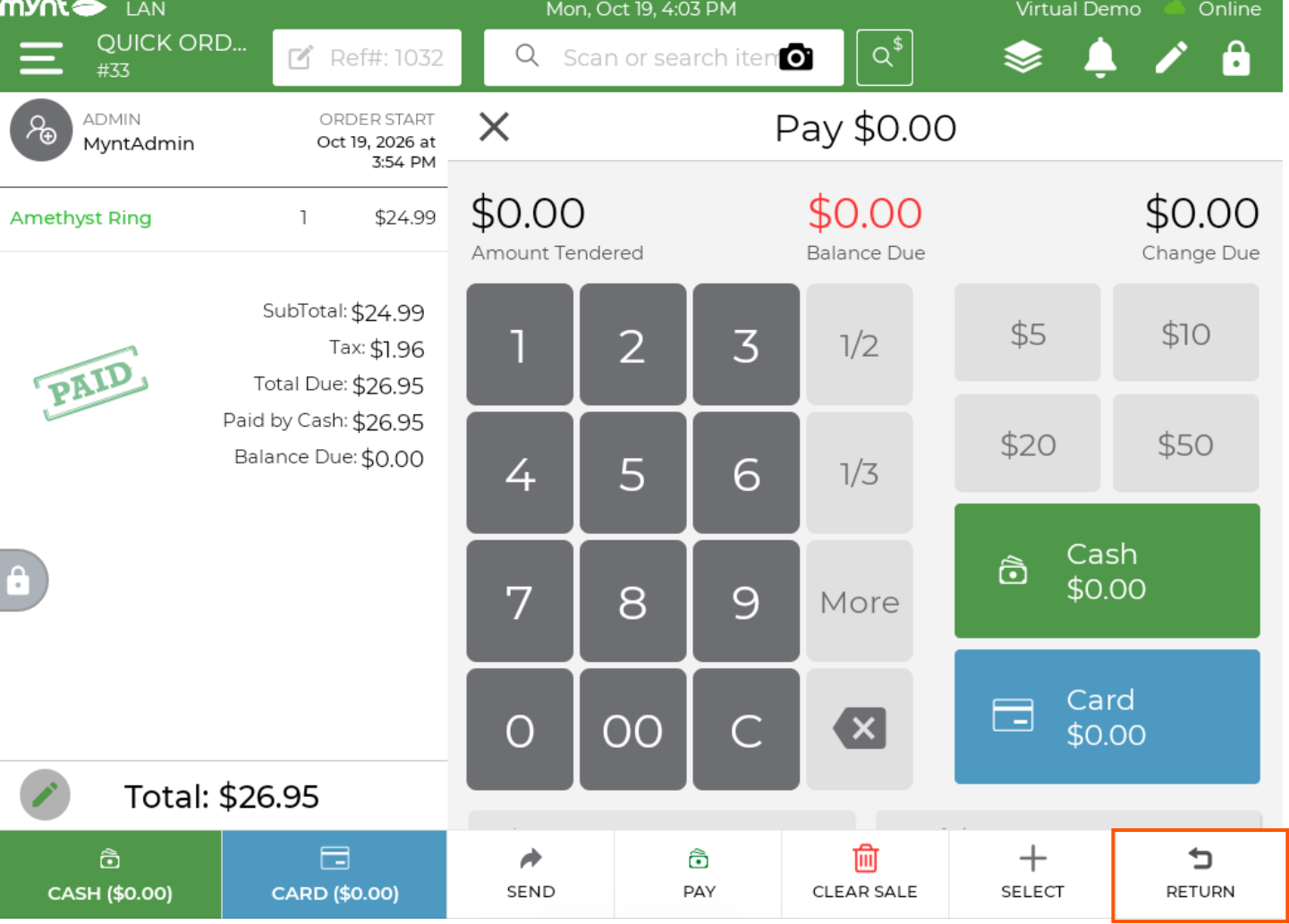
Mynt Retail order screen with the Return button at the bottom right

Press “Return” on the bottom right.

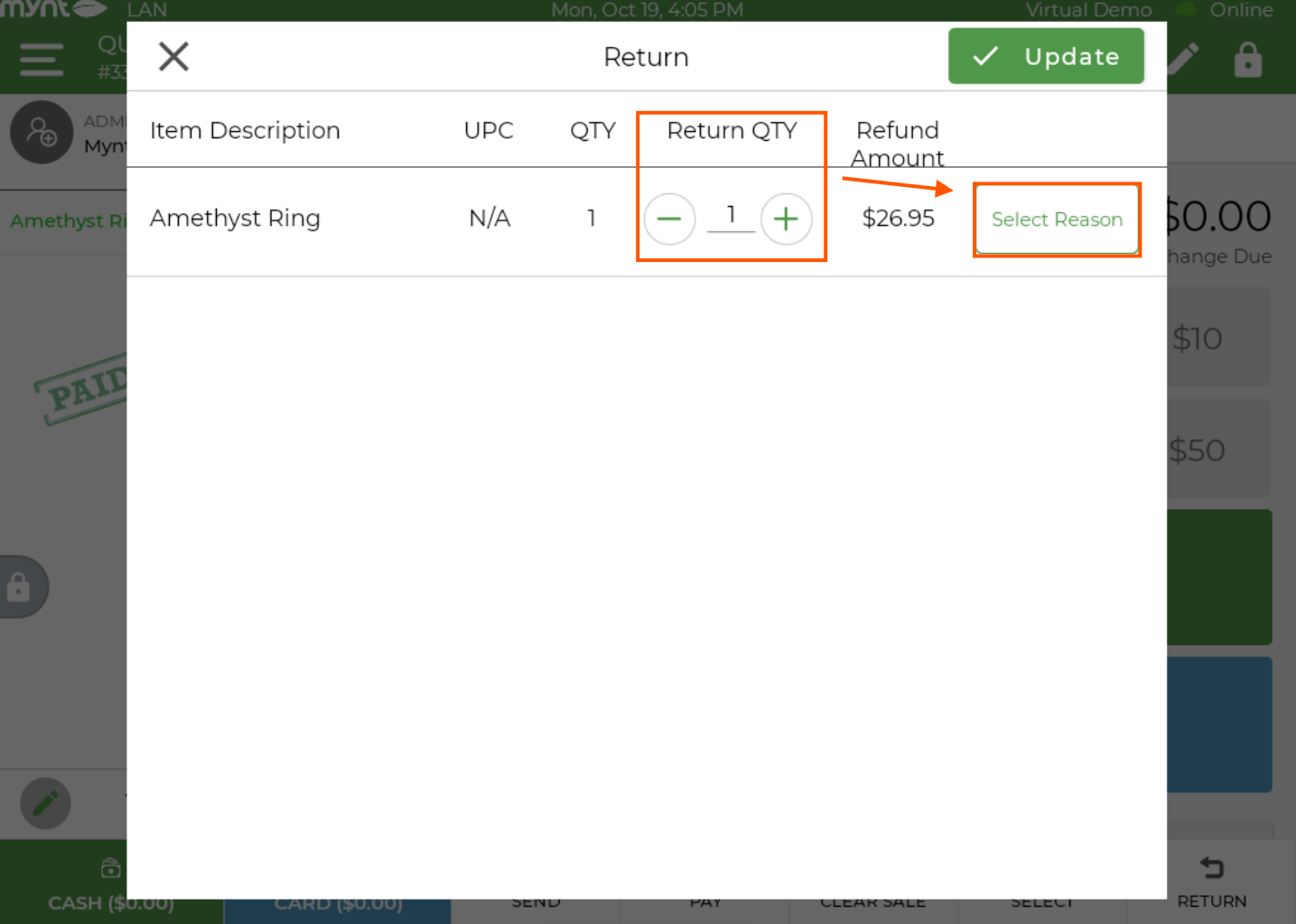
Return dialog with Return QTY and Select Reason controls

Select the “Return QTY” to refund specific items for a partial refund, or simply select all to refund the entire order. Press “Select Reason”, and then select a reason for the Return.

NOTE: Return reasons can be created through the Portal login inside Settings > Setup > Return Reasons
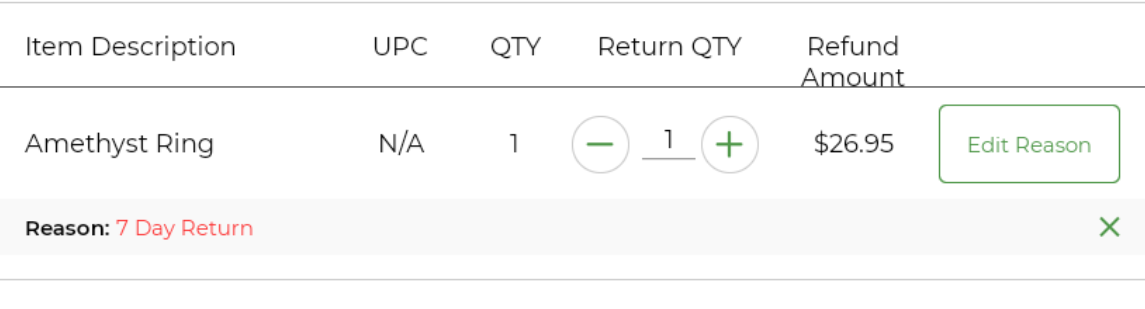
Return dialog with a return reason selected
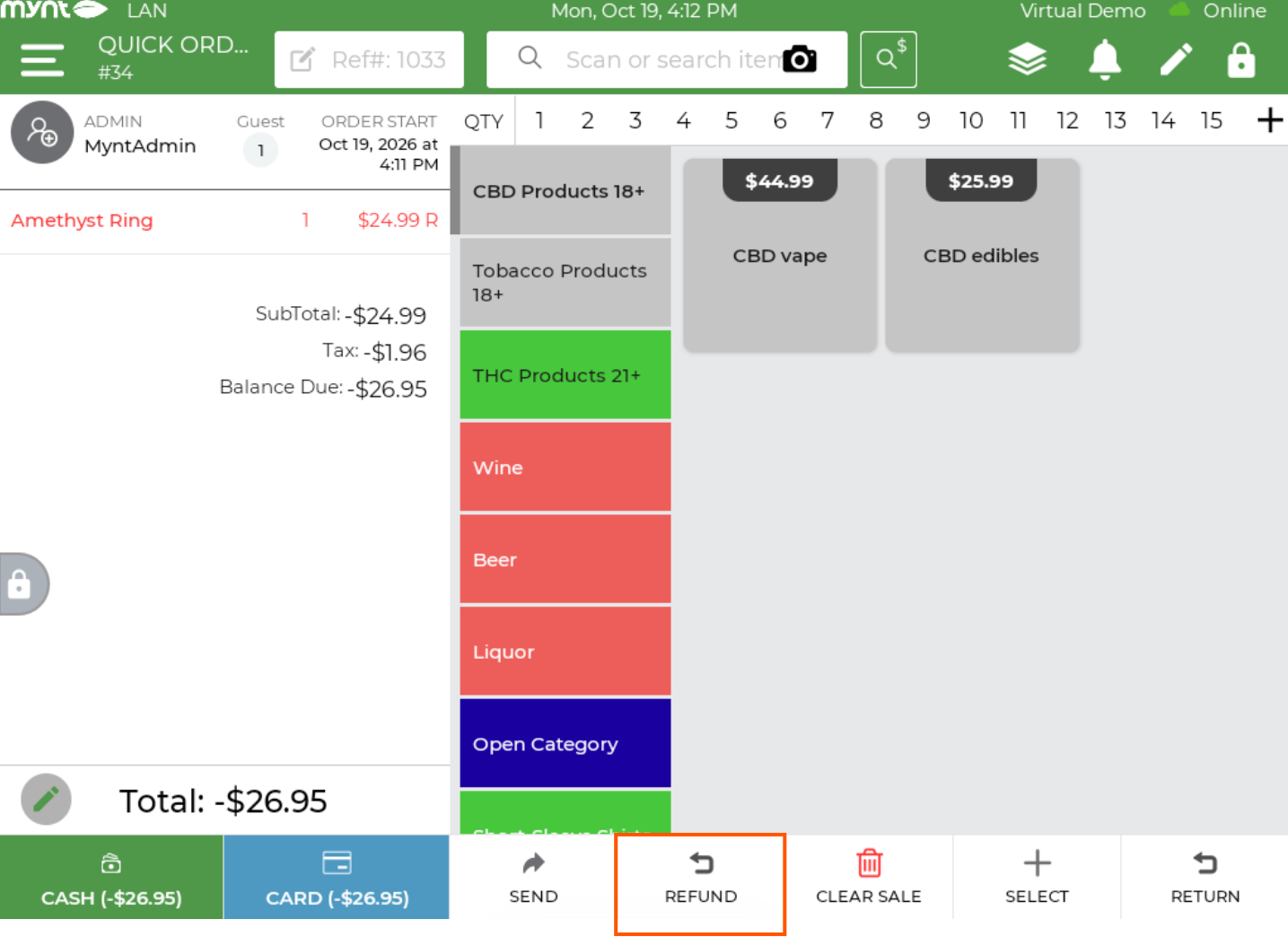
Mynt Retail POS refund screen after selecting the return items

Press “Refund” and then close the transaction out as normal. The amount will be refunded to the customer instead of charging them.

Need Another Resource?

Find more answers in the Resource Library.

Explore Our Library

Download the PDF

Save a copy to keep handy or share with your team.

Save PDF Guide

Still Need a Hand?

If you still need help, reach out to Mynt Support.

Call Mynt Support (Option 5)