
Mynt Retail can track your inventory in real time, letting you know what to reorder and when.
Inventory features include Updating the inventory count, sending automatic stock alerts, generating purchase orders, and more.
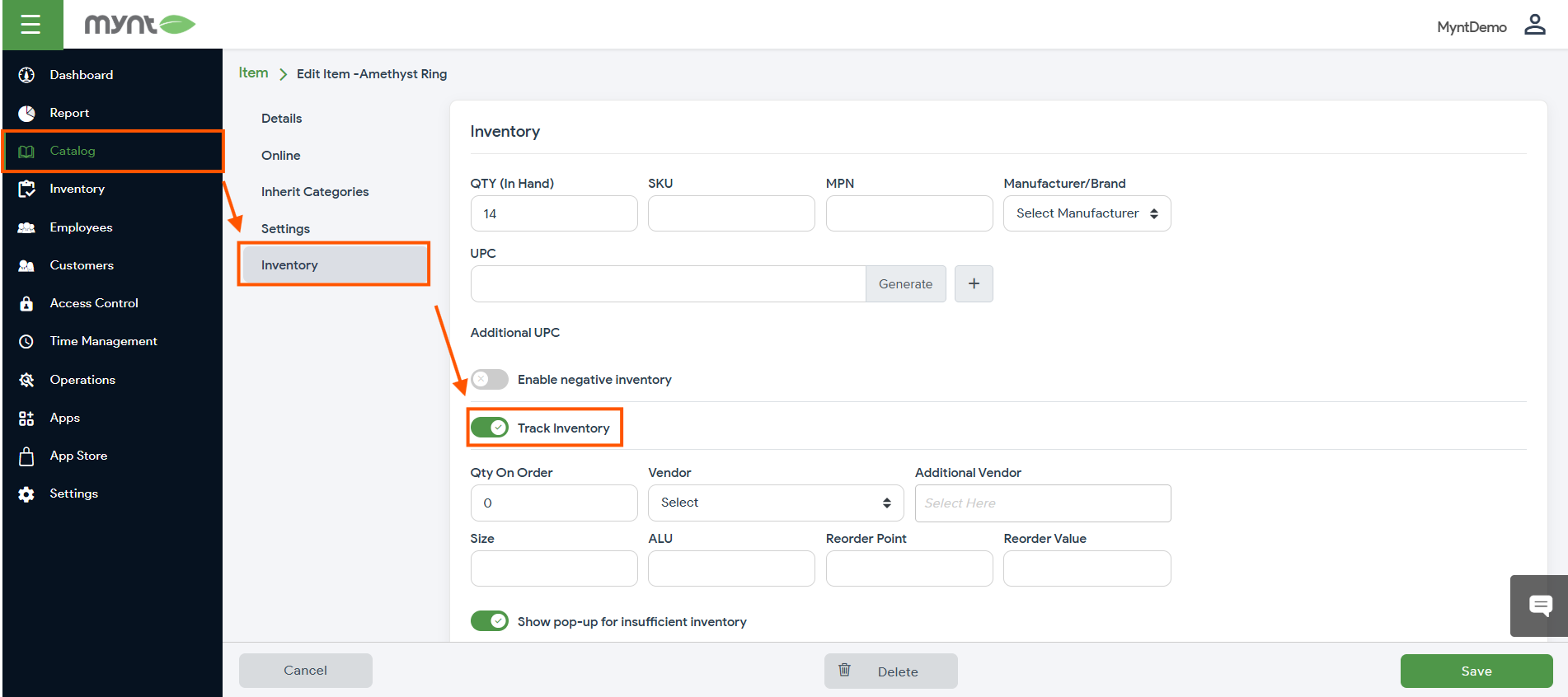
Before navigating to the Inventory Tab of the Backend Portal, ensure that each item you would like to track is set to do so inside of the item’s inventory settings Catalog > Item > Inventory > Track Inventory.
After navigating to the Inventory tab of the backend portal, you will see the following information:
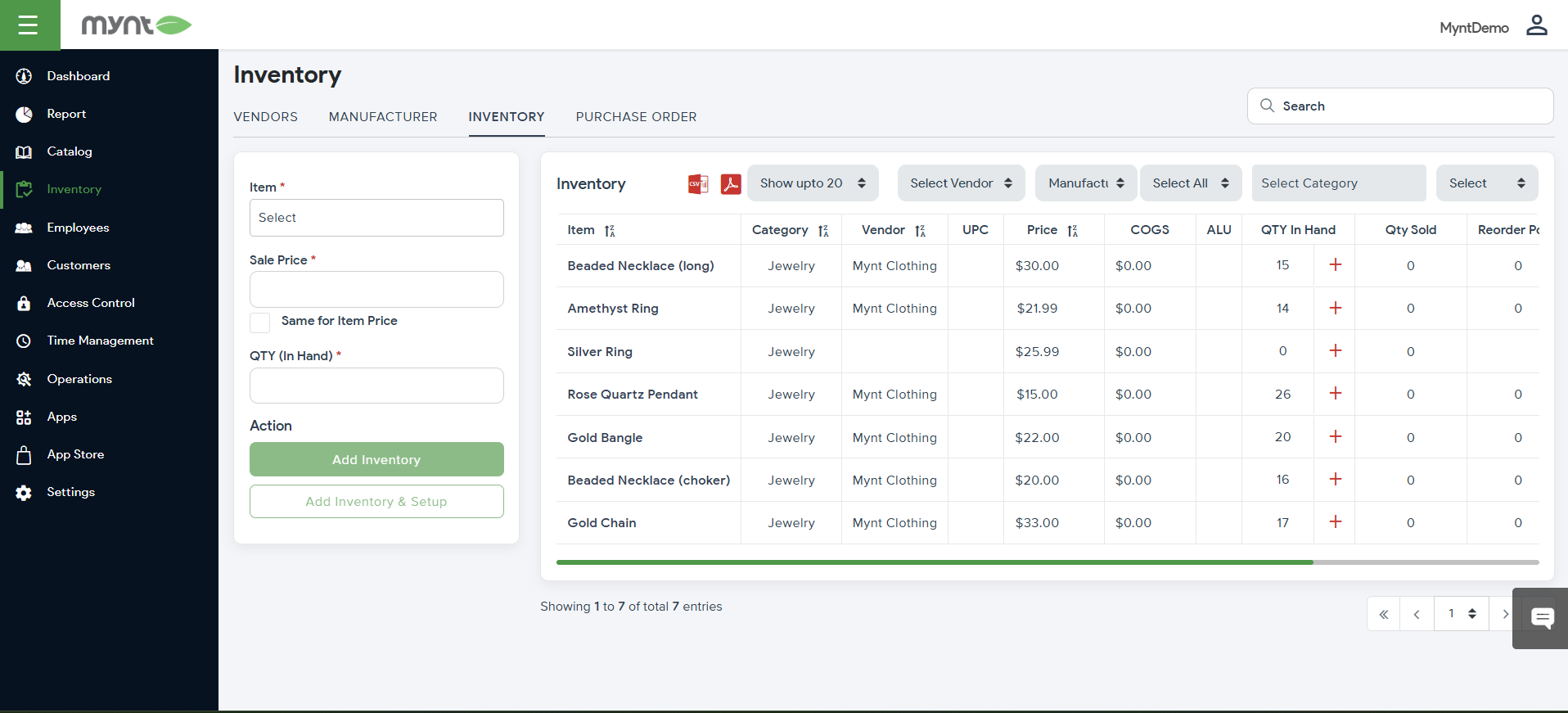
- The item name and vendor name.
- Cost of Goods (COG).
- In-hand quantity of stocks.
- Items sold.
- Reordering point of an item.
- Item status.
Updating Existing Stock and Adding a New Stock
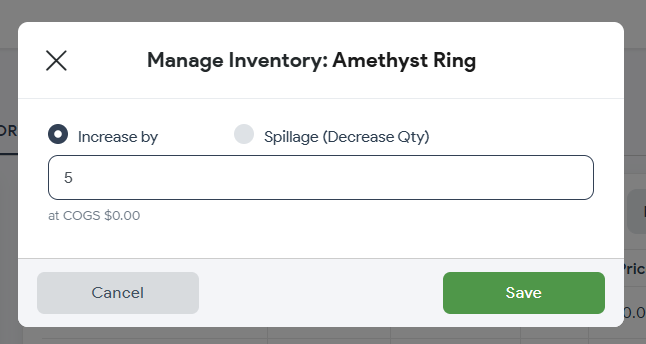
To add a new stock, click the Plus on the right-hand side, and then a pop-up will require you to put details, and finally click “Save” as shown in the screenshot.
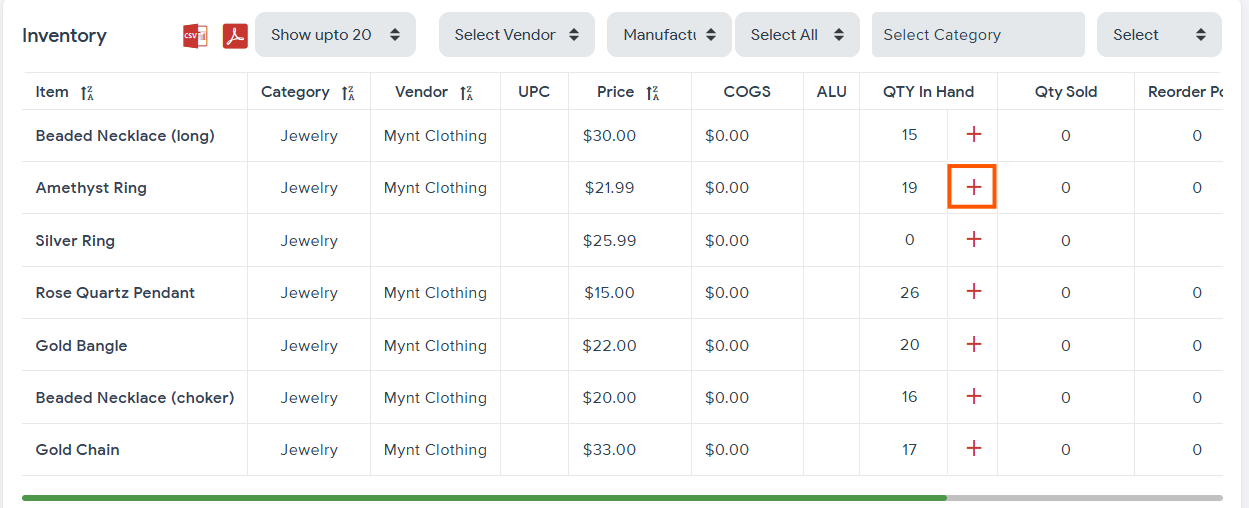
Updating Existing Stock and Adding a New Stock
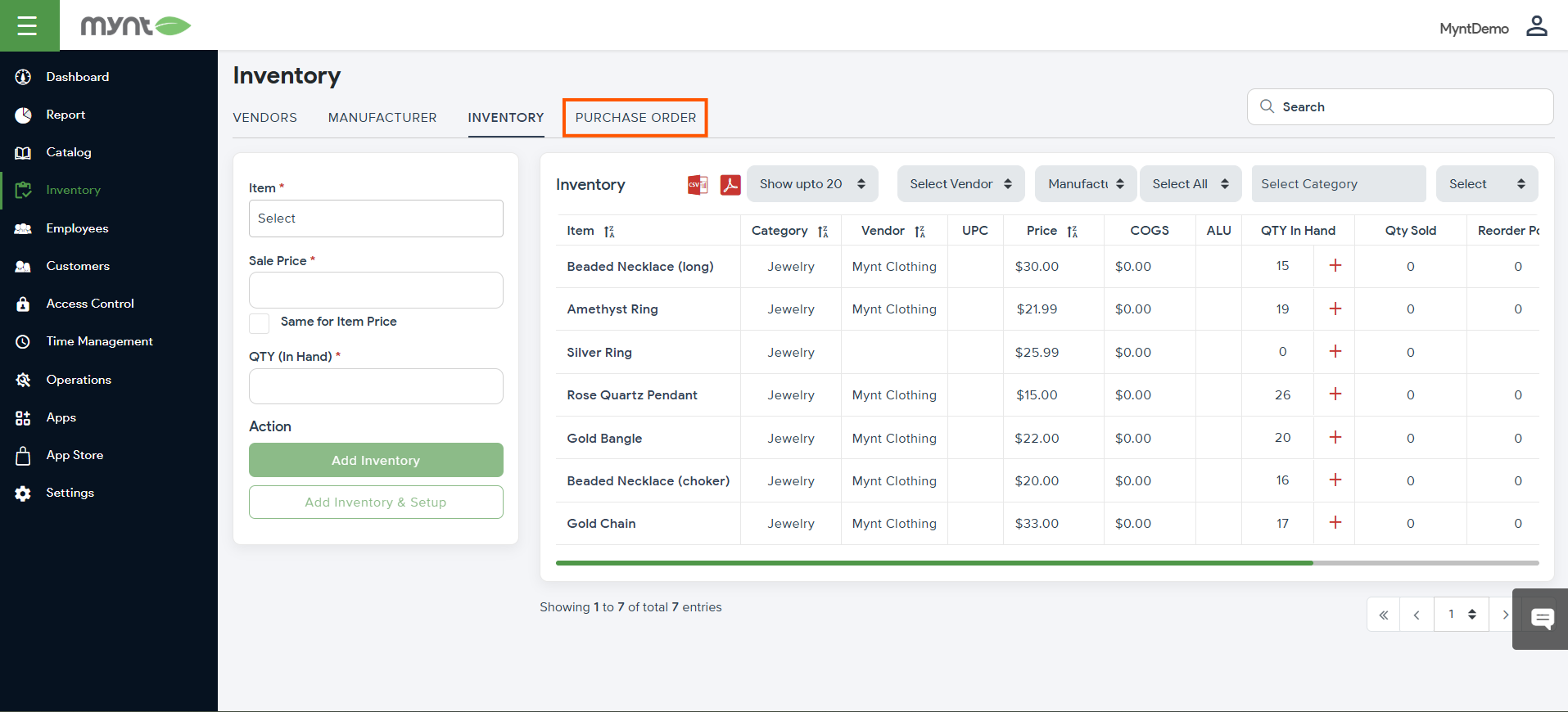
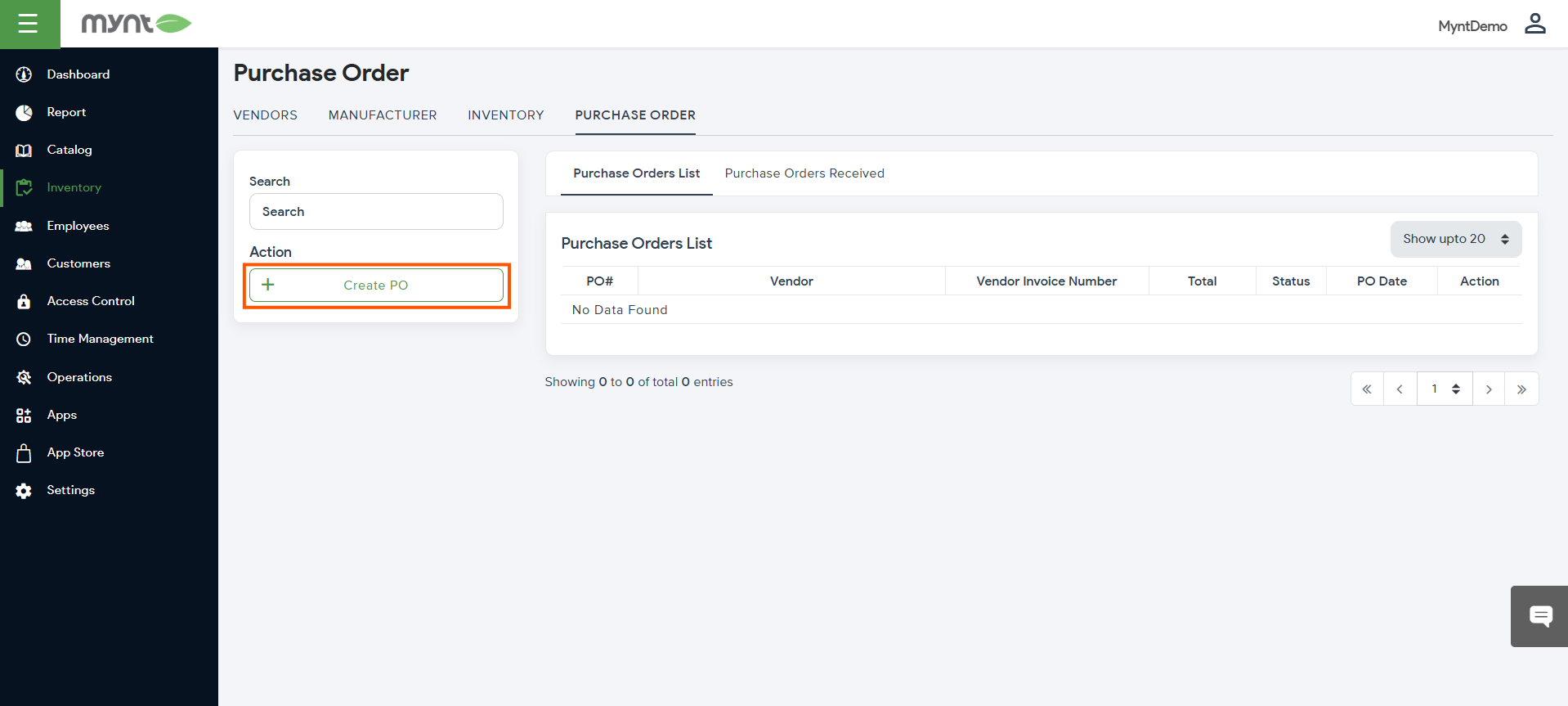
Click on “Purchase Order”. And then click “Create PO”.
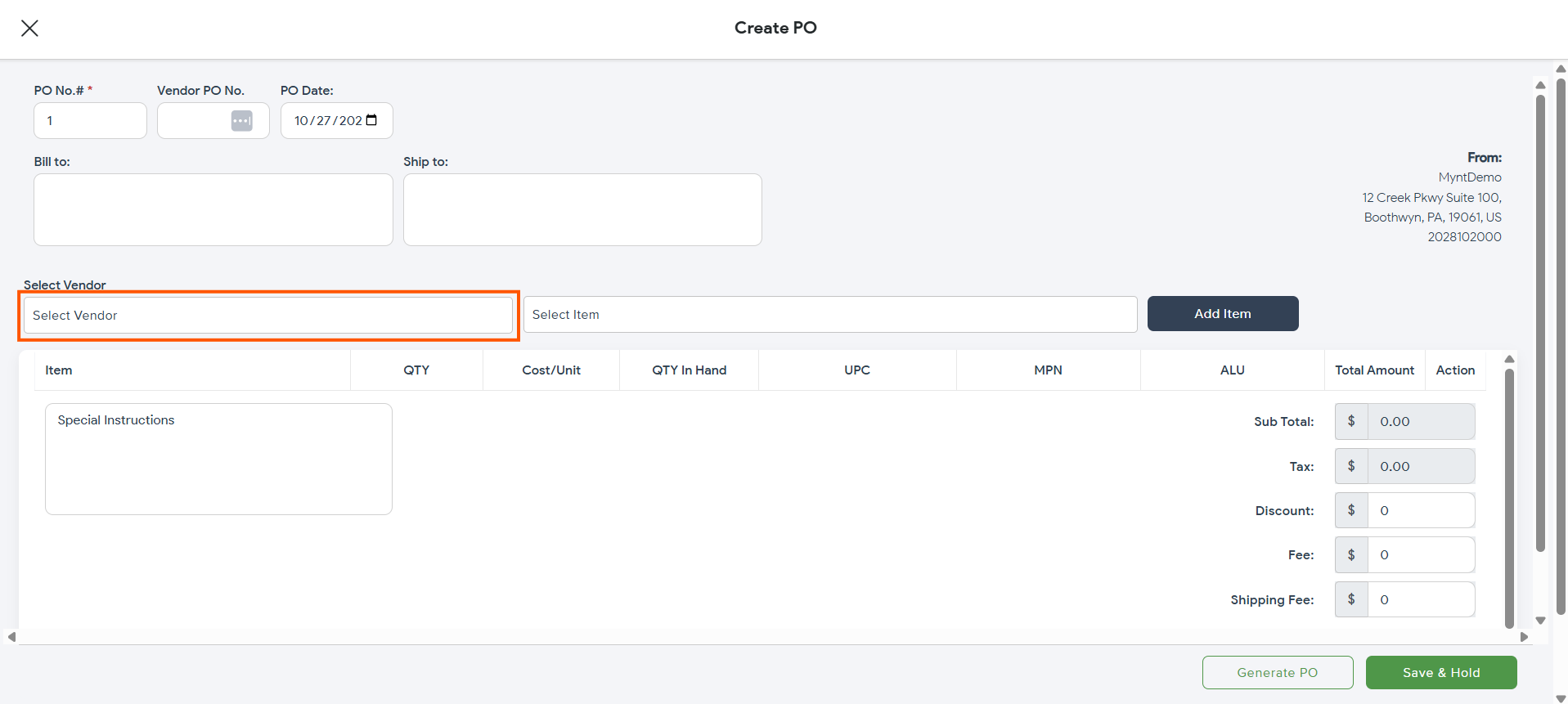
Open the “Select Vendor” dropdown box, and choose the correct vendor for this order, and then open the “Select Item” dropdown to add all items for the purchase order.
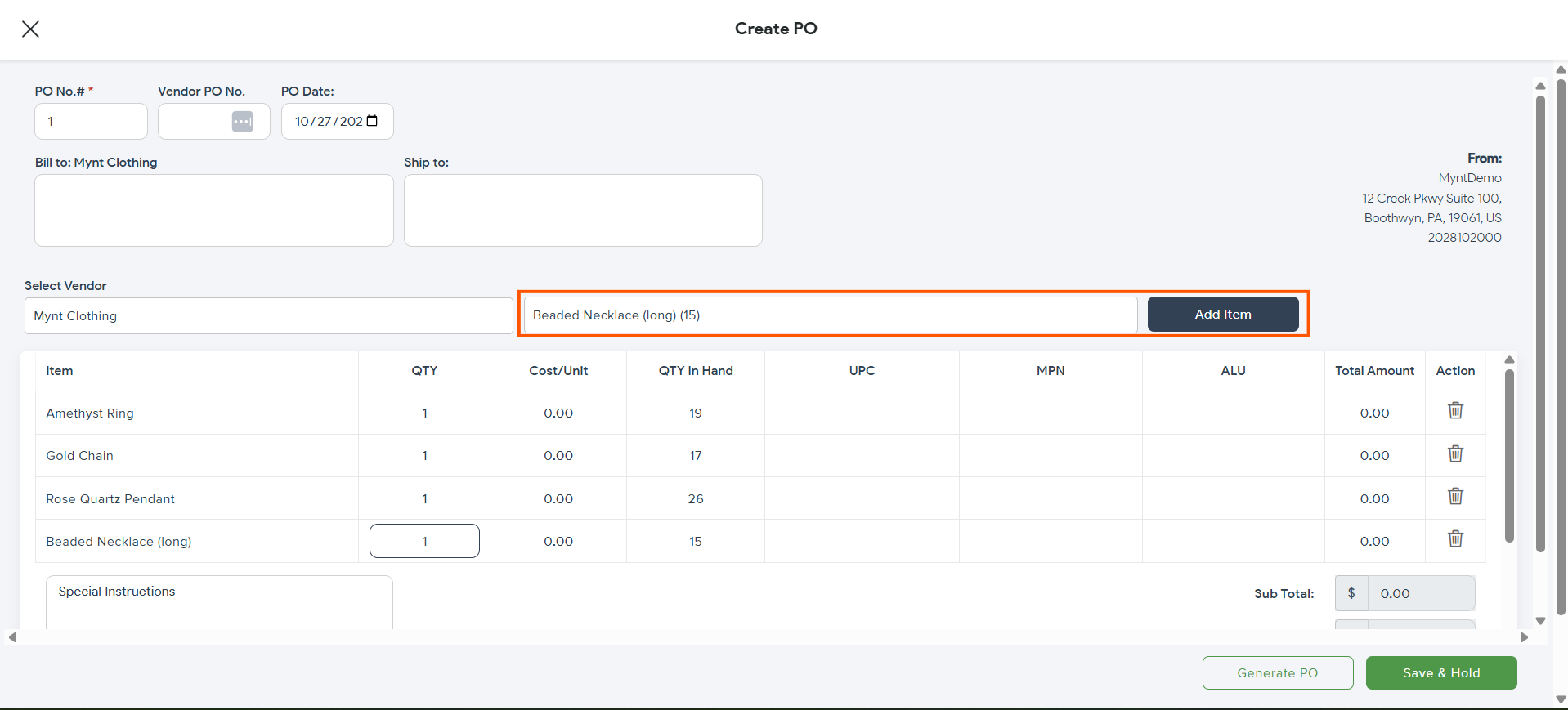
Update the quantity for each item, if necessary. Once complete, press “Generate PO”.
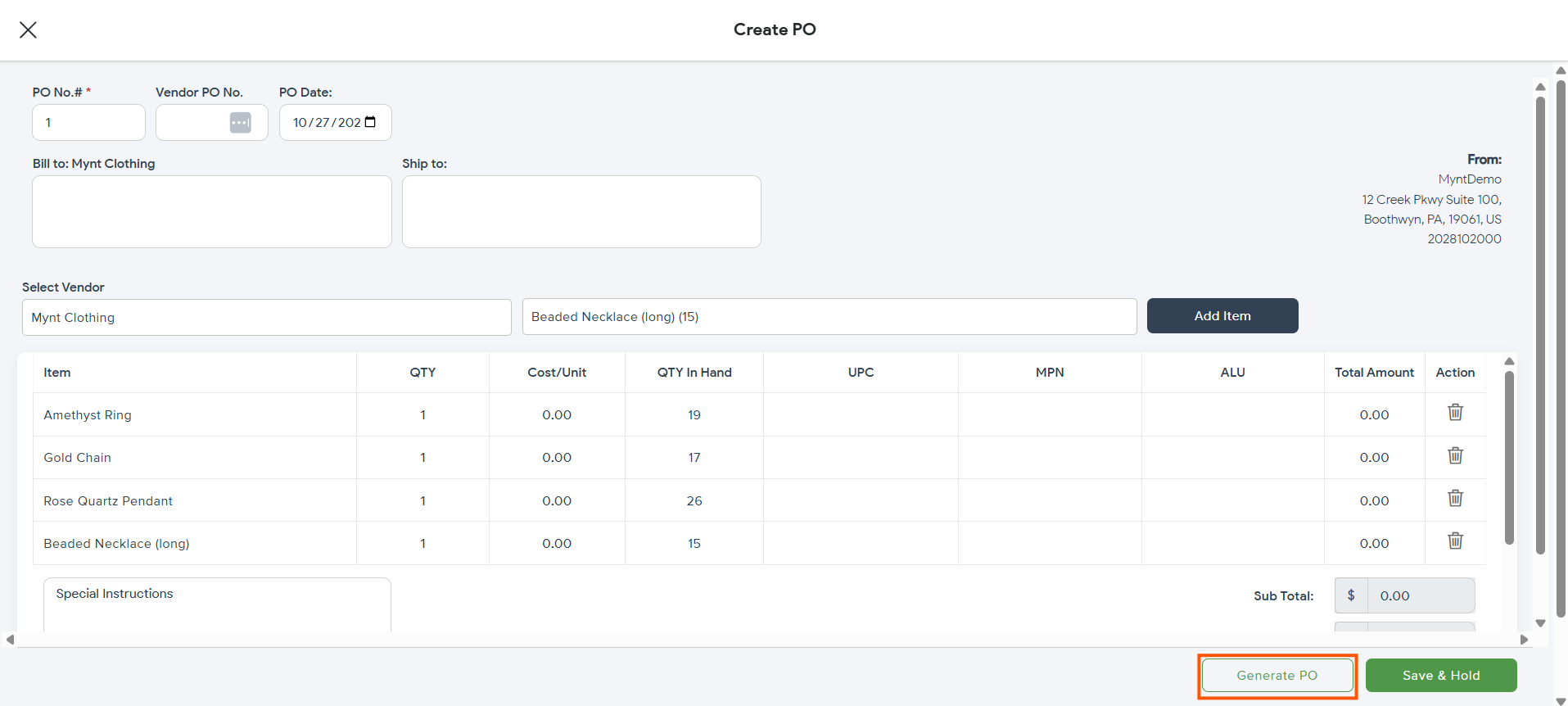
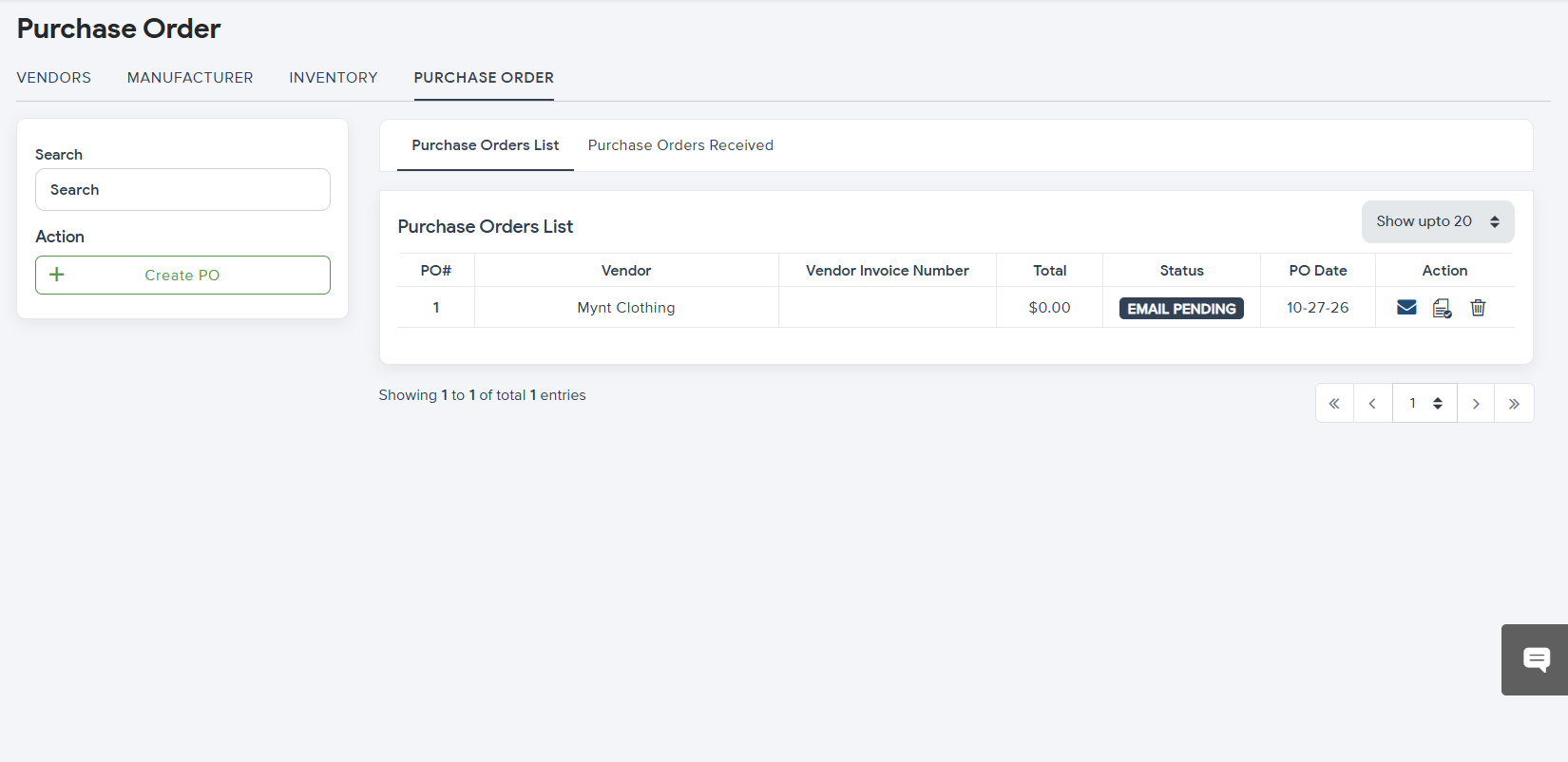
The PO generated can be downloaded as a PDF, and you can email it directly to the vendor.
Now you can check the PO status on the main PO screen as shown in the above screenshot.
A newly generated PO will be marked as Pending under the Status column.
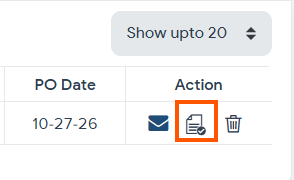
Once the shipment is received, click the Page icon corresponding to a particular item to receive the PO.
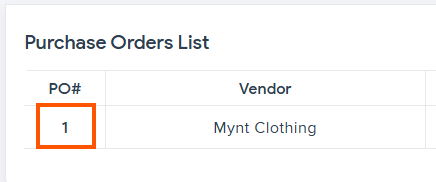
You can also edit the PO at any time by clicking the PO# for the corresponding PO.
Once the order is received, you can update the PO generated, as seen in the screenshot.
For a partial shipment, you can change the QTY Received.
Once you press receive on the order, it will automatically update the In Hand Inventory.
If the order is fully received, it will be marked as received on the POS list.
If it was only partially received, it will show Partially Received (in red) under status.